Your weekly dose of Apple news, iOS guides & more → Subscribe FREE

Your MacBook now has a built-in ring light, here’s how it works
2/19/20262 min read
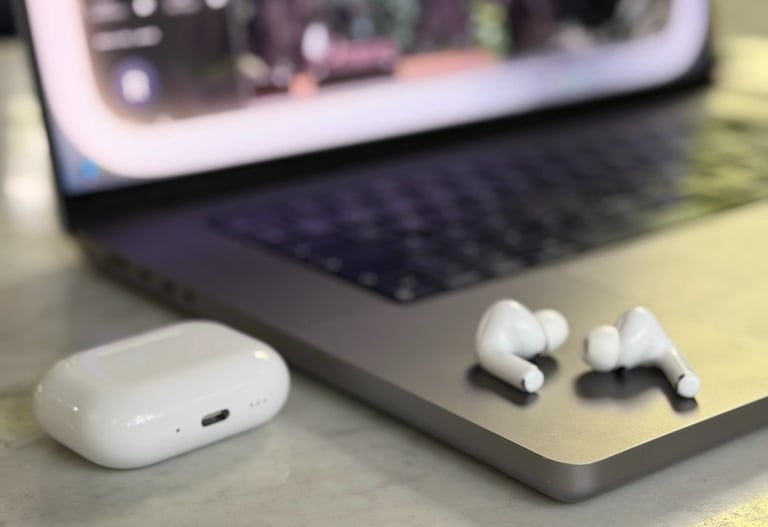
Did you know your MacBook has a cool new feature called Edge Light?
It adds a virtual ring light effect around your screen during video calls, helping your face look better lit.
How to use Edge Light on Mac in macOS Tahoe 26.2
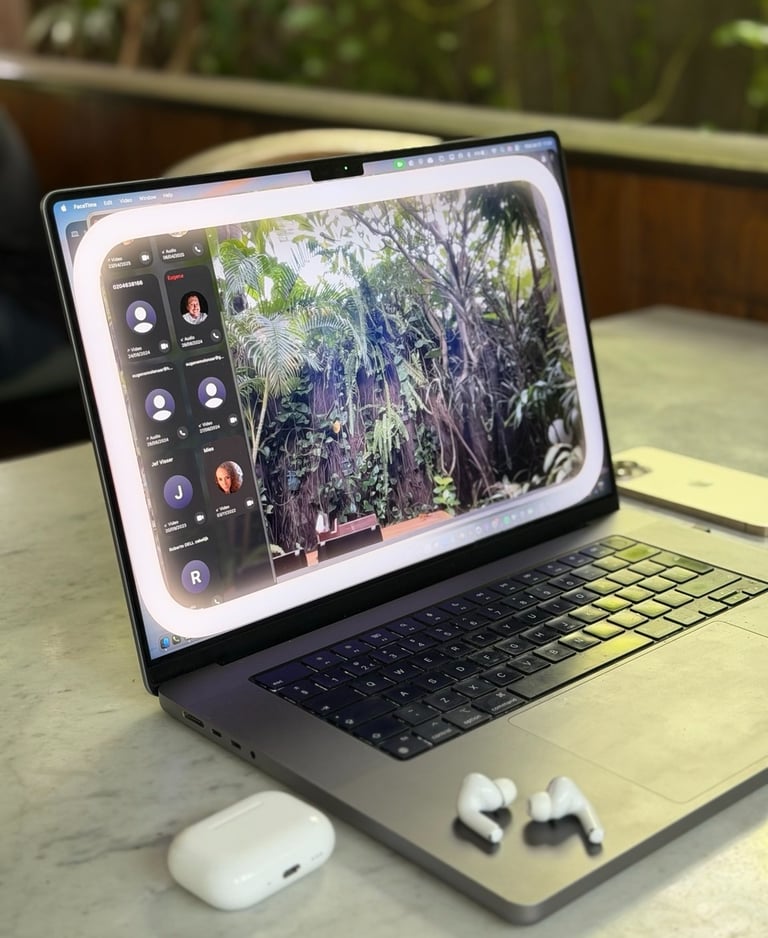
With macOS Tahoe 26.2, introduced Edge Light. This is a virtual ring light effect that makes your face look better lit during video calls. It’s subtle, but you’ll notice the difference right away.
What you need first
A Mac running macOS Tahoe 26.2
A video call app (FaceTime, Zoom, Google Meet, Teams, etc.)
Your camera turned on
Step 1: Update your Mac to macOS Tahoe 26.2 or later
Click the Apple menu
Go to System Settings
Tap General
Tap Software Update
If macOS Tahoe 26.2 or newer is available, click Update Now
Follow the steps and let your Mac restart to install the update.
Tip: Keep your Mac plugged in during the update.
Step 2: Start a video call
Open any video call app you use (FaceTime, Zoom, Teams, Meet, etc.) and turn your camera on. Edge Light usually shows up once your camera is active.
Step 3: Turn on Edge Light
You can find Edge Light in your Mac’s video effects controls.
Open Control Center (top-right of your menu bar)
Look for Video Effects (or Video controls)
Find Edge Light
Toggle it On
Once enabled, you should see a more even, “ring light” style glow around your face, without any extra lighting gear.
Where else you might see it.
Depending on the app you’re using, Edge Light can also appear inside the app’s video settings (camera effects).
If your app has a Video / Effects menu, check there too — you’ll often see the same Edge Light toggle.
Bonus if you are using a MacBook from 2024 or later
If you’re using a Mac released in 2024 or later, Edge Light can turn on automatically when your Mac detects a dark room.
Edge Light also works when your Mac is connected to Apple Studio Display and with external cameras, as long as you’re using an Apple-silicon Mac*.
*MacBooks with Apple Silicon
MacBook Pro
MacBook Pro (13-inch, M1, 2020)
MacBook Pro (13-inch, M2, 2022)
MacBook Pro (14-inch, M1/M2/M3/M4, 2021–present)
MacBook Pro (16-inch, M1/M2/M3/M4, 2021–present)
MacBook Air
MacBook Air (M1, 2020)
MacBook Air (M2, 2022–present)
Newer MacBook Air models with M3/M4 chips as available
Apple Silicon Desktop Macs
iMac
iMac with Apple Silicon (introduced 2021 and later)
Mac mini
Mac mini with M1 and later chips (2020 and newer)
Mac Studio
Mac Studio models introduced with Apple Silicon starting 2022
Mac Pro
Mac Pro with Apple Silicon (introduced 2023)