Your weekly dose of Apple news, iOS guides & more → Subscribe FREE

Why Is My iPhone Battery Draining After Updating to iOS 26?
Updated to iOS 26 and noticing faster battery drain? This article explains why it happens, what’s going on in the background, and how to improve battery life.
IOS 26
2/23/20266 min read
Every year when a new iOS version comes out, I’m genuinely excited to install it. I usually start testing beta versions months in advance, exploring new features and sending feedback to Apple when something doesn’t work as expected.. So when I updated to iOS 26, I thought I knew exactly what to expected. But shortly after updating the final version, something felt off and its basically every year the same. I use the same iPhone, same apps and same daily usage but my battery percentage is dropping much faster than usual!! You’re not imagining things. I had the exact same reaction. When I noticed it, my first thought was: what changed?
But there is good news and no need to panic. This kind of battery behavior after a major iOS update is completely normal.
Let’s talk about what’s actually happening in the background and what you can do to improve your battery life.
First: this is very normal after an iOS update
After installing iOS 26, your iPhone starts doing a lot of work in the background, even if it doesn’t look like it.
Think of it as your iPhone “settling in” to the new system.
This includes:
Re-indexing photos and videos
Rebuilding Spotlight search
Optimizing system files
Syncing iCloud data again
Re-learning your usage patterns
All of that uses extra power, especially in the first 24–72 hours.
So yes. Battery drain right after updating to an new iOS update is expected.
How long does this usually last?
From my experience (and many others):
Day 1: battery drain feels noticeable
Day 2–3: still a bit higher than normal
After that: things usually stabilize
If your battery is still draining heavily after 3–4 days, then it’s time to take a closer look.
The most common reasons battery drains after a new iOS is installed
Background app activity.
Even when your phone is locked, iOS 26 may still be:
Syncing Photos
Updating app data
Refreshing system services
You can check this by going to:
Settings → Battery → View All Battery Usage
Here you can see exactly the Daily Usage and compare it to other days and the App and System Activity Usage.
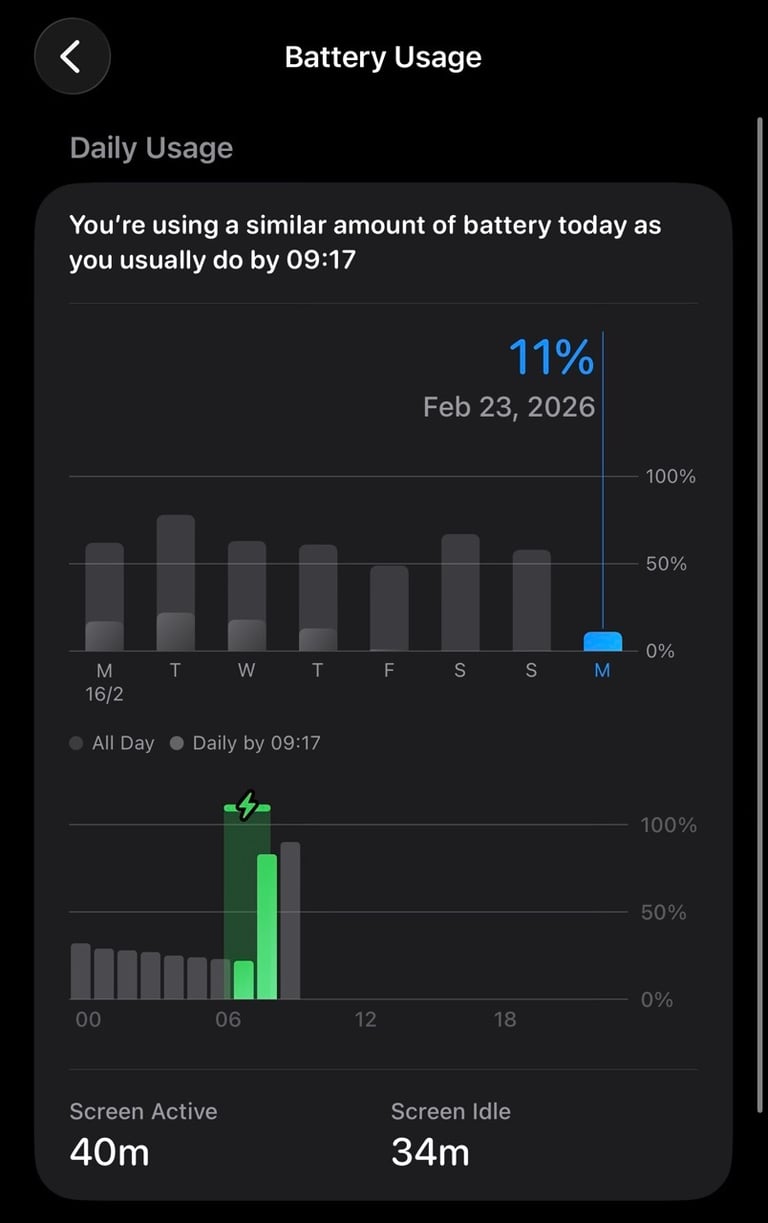
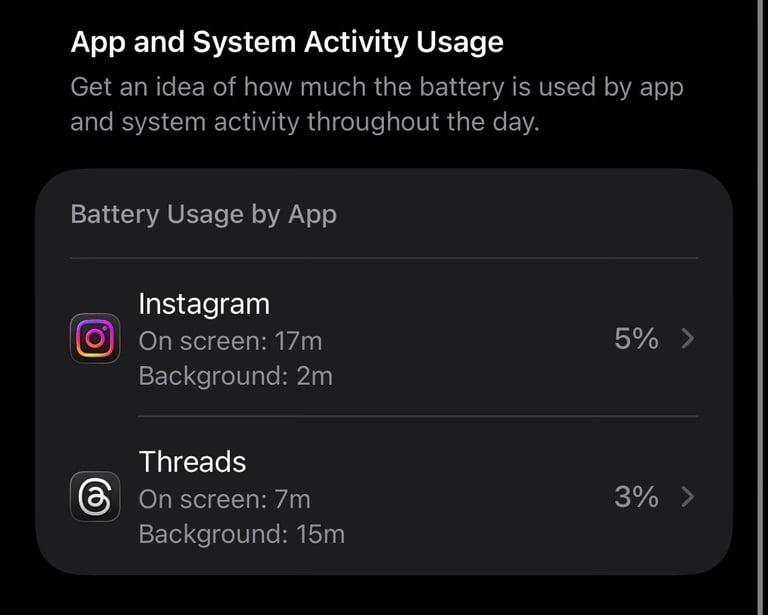
If you notice one app using a surprisingly large percentage of your battery, it could simply mean that the app isn’t fully optimized for iOS 26 yet.
I’ve seen this happen myself after updates, even with apps I use every day. In some cases, the developer hasn’t released an update yet, which can cause higher battery usage. It’s always worth checking the App Store to see if an update is available. Installing the latest version often fixes this right away.
Background App Refresh is on
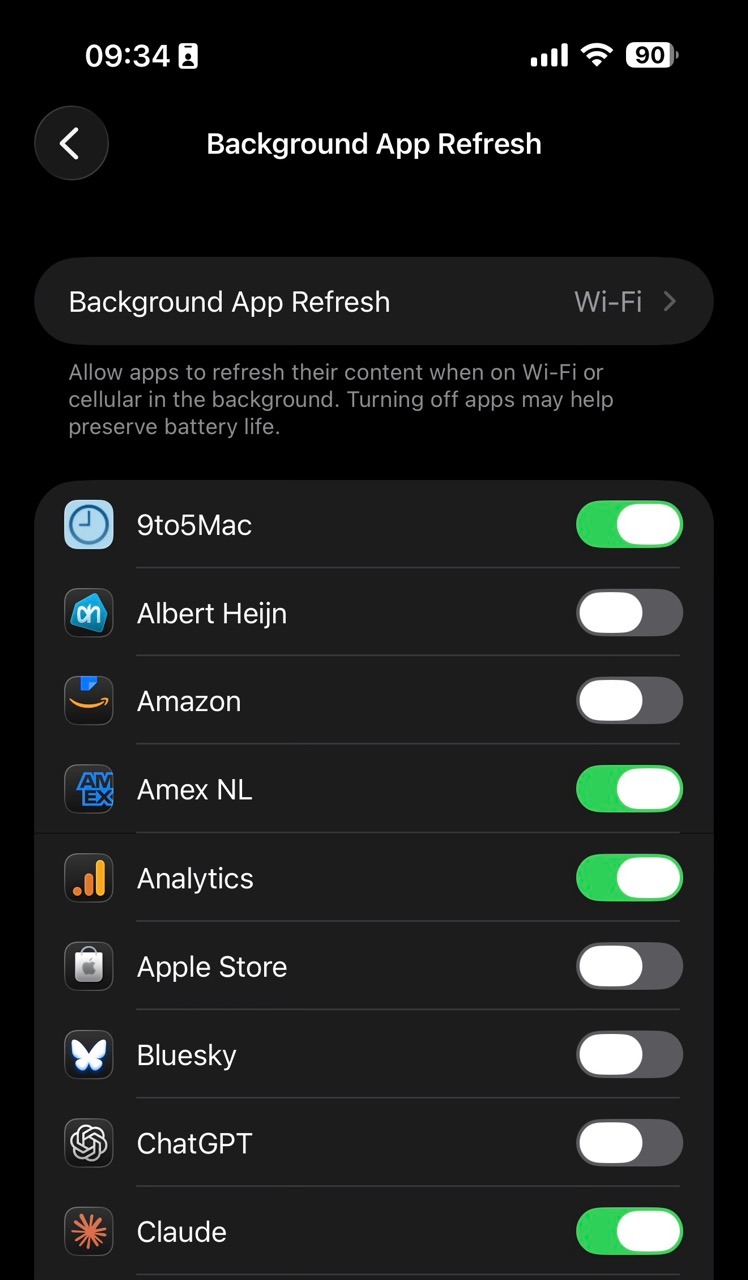
After major iOS updates, some settings quietly turn themselves back on. By default, almost all apps on your iPhone are allowed to refresh in the background, even when you’re not using them.
Check this setting
Settings → General → Background App Refresh
If you don’t need all your apps updating constantly in the background, set this to:
Wi-Fi only, or
Off for apps you rarely use.
This alone can make a big difference for your daily battery usage.
Location services using more power than expected
After a major iOS update, like iOS 26, it’s not uncommon for Location Services to use more battery than usual.
One reason for this is that iOS updates can reset or change location permissions for certain apps. Apps that previously only used your location occasionally may suddenly start checking it more often. Sometimes without you realizing it.
This can include apps that
Track your location in the background
Use location for ads or analytics
Refresh data based on where you are
Because location checks rely on GPS, Wi-Fi, and Bluetooth, they can have a noticeable impact on battery life.
How to check this
You can see which apps are using location services by going to:
Settings → Privacy & Security → Location Services
Look for apps set to:
“Always”
Or showing frequent location usage
For most apps, the setting “While Using” is more than enough.
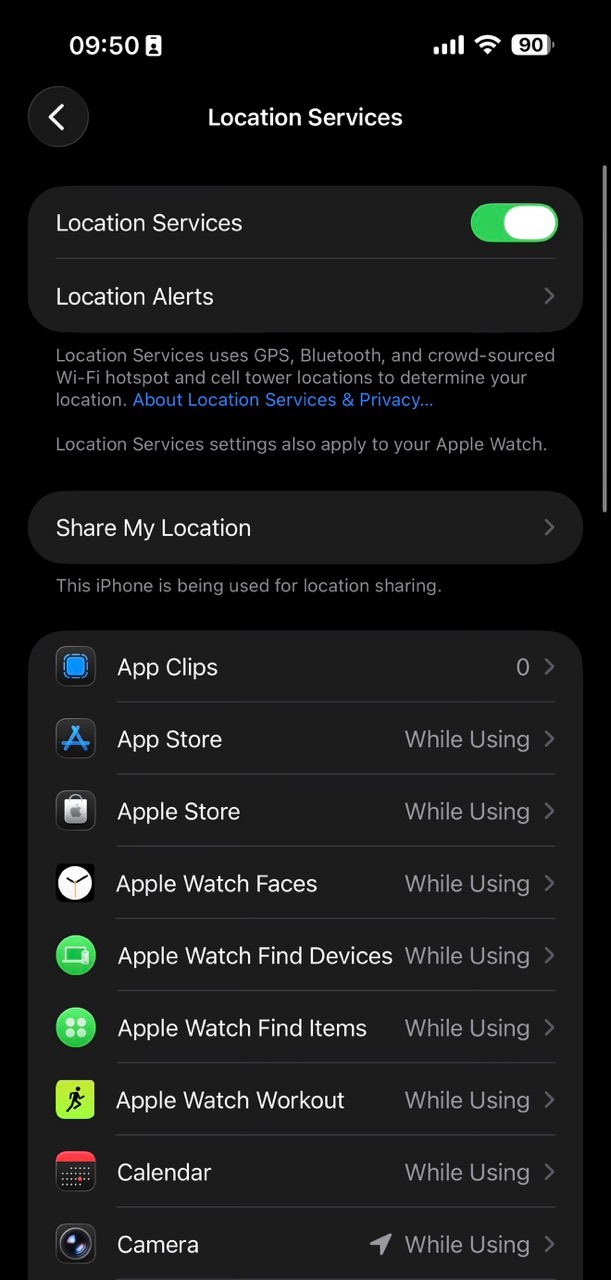
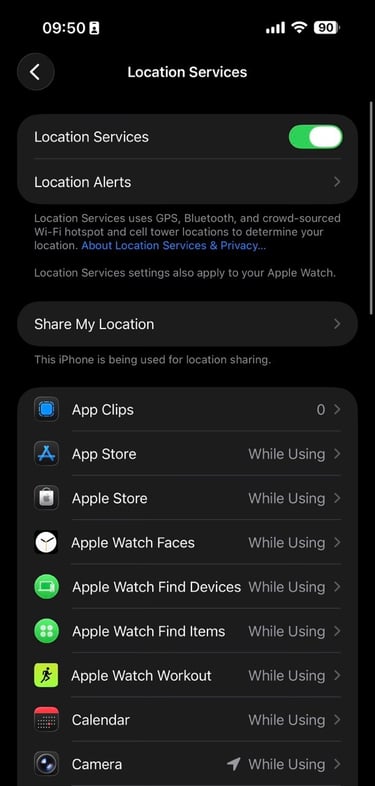
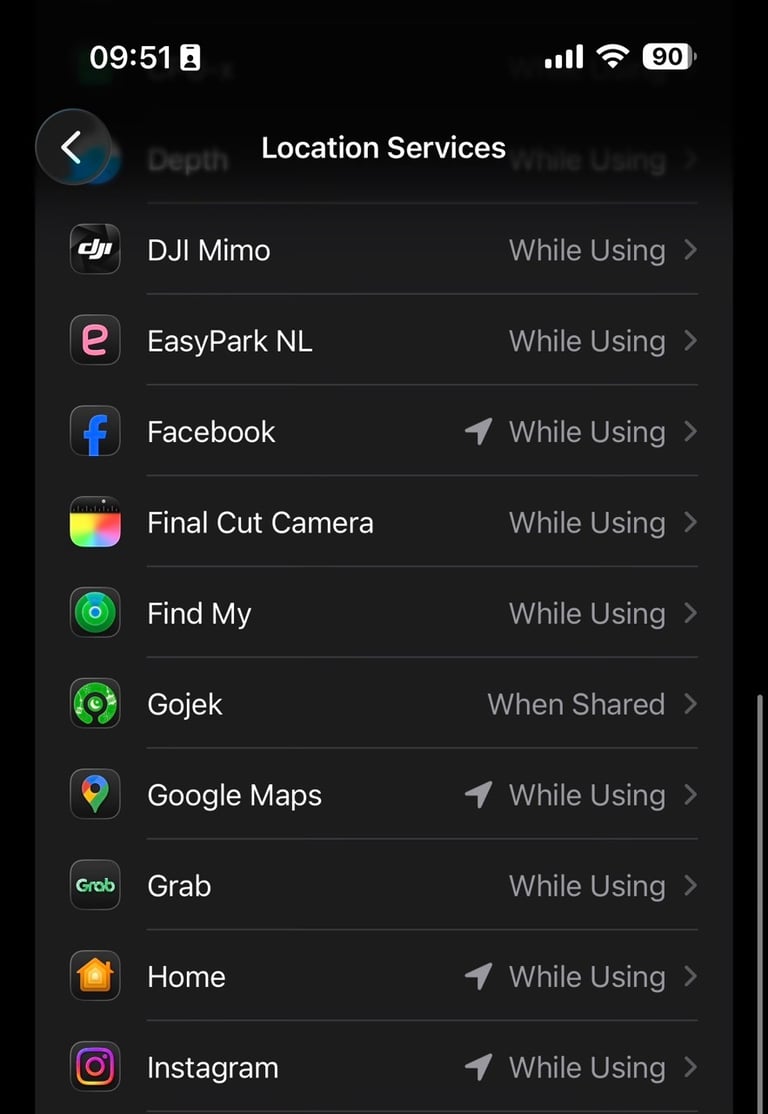
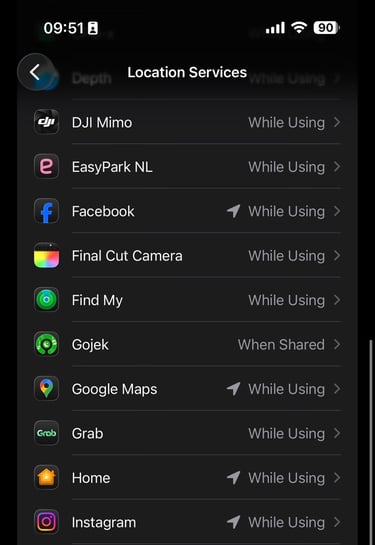
Tip: If you scroll down in Location Services to System Services you can disable there that are using your location.
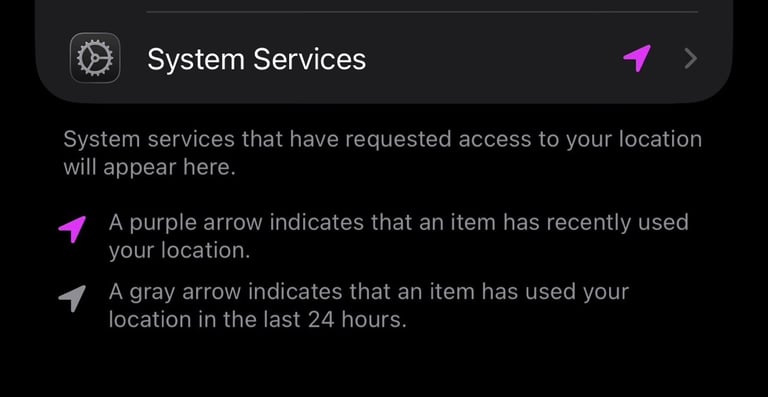
The purple arrow indicates an item that has recently used your location and the gray arrow indications that an item has uaed your loaction in the last 24 hours.
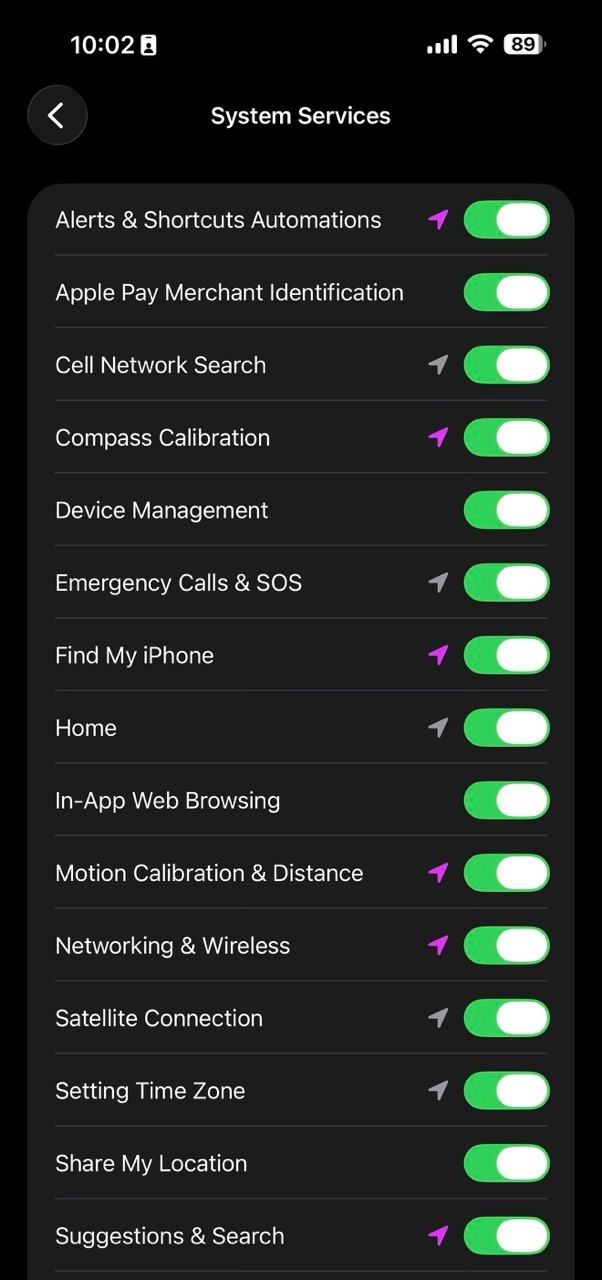

You don't need to turn off all these settings, but from here you can turn off settings you don’t use or don’t need. Disabling some of these can help reduce unnecessary location checks and improve battery life.
Check your Battery Healh settings
iOS 26 has an updated Battery Health with a new setting called Adaptive Power. This settings is visible if you use the iPhone 15 Pro or later including the iPhone Air.
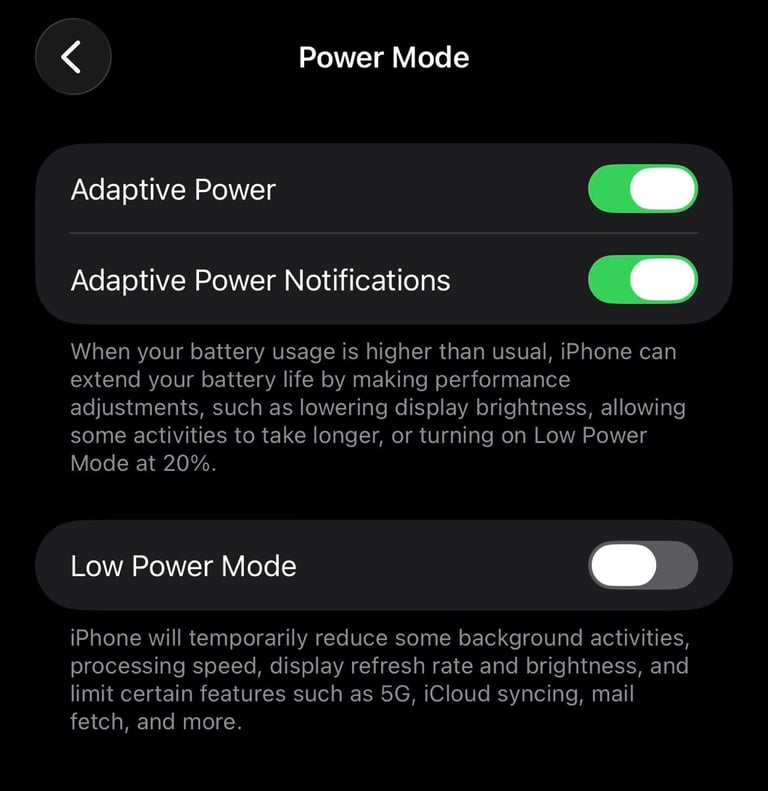
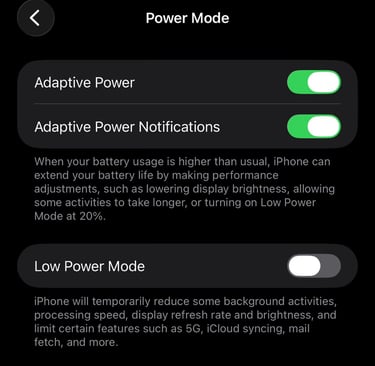
Path: Settings → Battery → Power Mode
What does Adaptive power do?
When your battery is draining faster than usual, your iPhone automatically tries to help. It makes small adjustments in the background to save power.
This can include:
Slightly lowering the screen brightness
Letting some background tasks run a bit slower
Delaying non-essential activities
You might not notice these changes right away, but they help your battery last longer.
Once your battery reaches 20%, iOS may suggest turning on Low Power Mode to further reduce power usage and extend battery life.


Tip: If you turn on Low Power Mode on an iPhone with a ProMotion (120Hz) display, the screen will temporarily switch back to 60Hz to save battery. When Low Power Mode is on, the battery indicator changes to yellow, so you can easily see it’s active.
Make sure that all your apps that your are using are up to date.
To make sure all your apps are up to date, open the App Store and tap your profile icon in the top-right corner. This can be your photo or just your initials if you don’t have a profile picture.
Scroll down, and if updates are available, you’ll see them listed under Upcoming Automatic Updates. From there, you can update your apps to the latest versions.
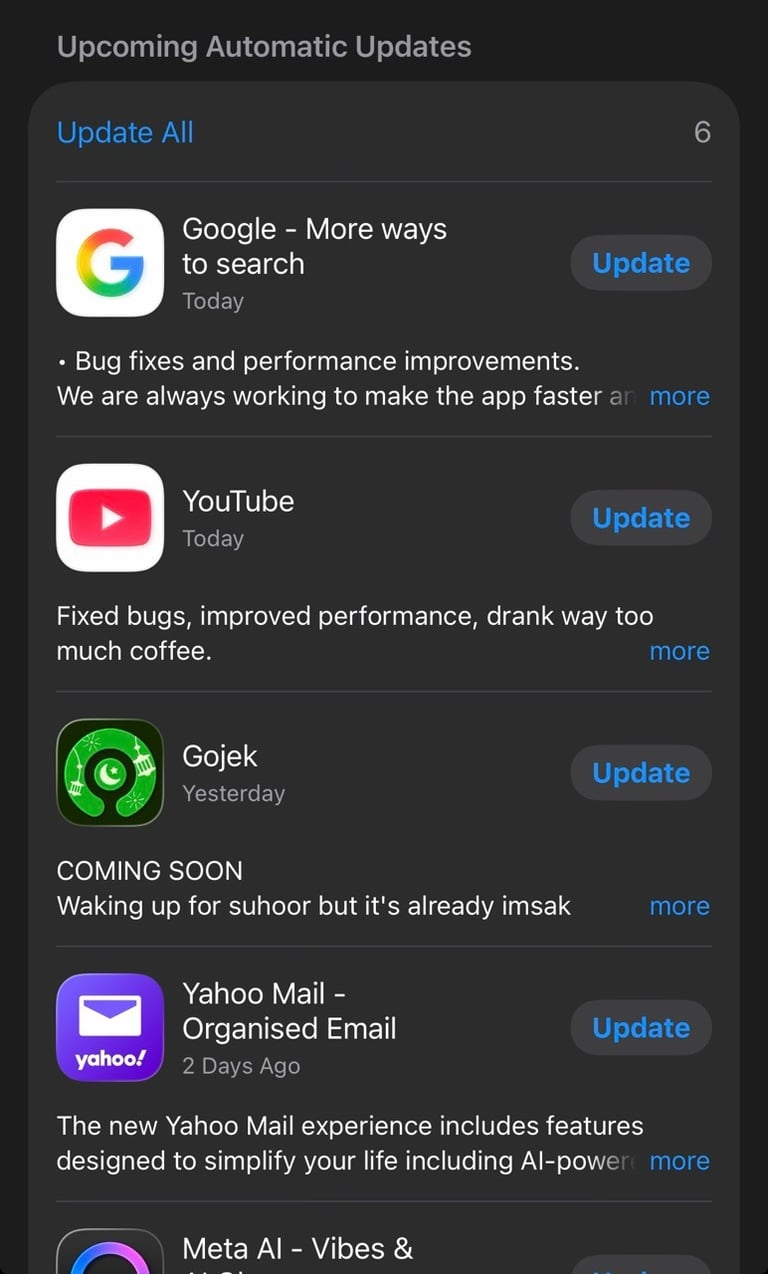
These updates will install automatically, but you can speed things up by tapping Update All. It’s a good idea to check this regularly, especially after a new iOS release.
Keeping your apps up to date helps ensure you’re using the latest versions from developers, which can improve performance, battery life, and compatibility with the newest iOS features.
My take
Battery drain after a major iOS update like iOS 26 can be frustrating, especially when everything feels the same but your battery tells a different story. The good news is that in most cases, this behavior is temporary and completely normal.
Your iPhone is doing a lot of work behind the scenes after an update. Syncing data, re-optimizing apps, and adjusting system services. Once that settles down and your apps are fully updated, battery life usually returns to normal.
If there’s one takeaway, it’s this: don’t panic. Give your iPhone a little time, keep your apps up to date, review the above key settings, and you’ll likely see things improve on their own.
If you found this article helpful, feel free to save it or share it with someone who might be wondering the same thing. And as always, I’ll keep testing and sharing tips to help you get the most out of your iPhone.