Your weekly dose of Apple news, iOS guides & more → Subscribe FREE

The Tech I Rely on When Working Remotely
A personal look at the tech I use when working remotely, including my MacBook, AirPods, accessories, and why battery life and comfort matter to me.
REMOTE WORK
3/2/20269 min read

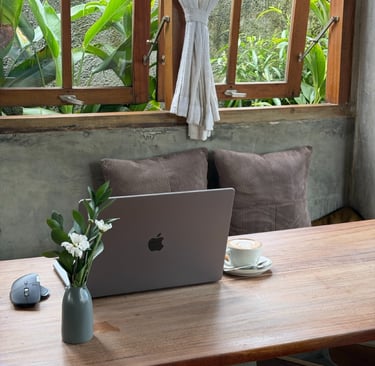
Hi there and welcome to this blog article. In this article I would like to write about my personal remote work setup and the tech I use when working remotely.
I’ve learned that the right tech can really make your day feel lighter, more focused, and more enjoyable. Not everything needs to be new or flashy. What matters most is that your gear fits your needs, your workflow, and the places you work from. Another thing that really matters is choosing an ecosystem that works well together. In my case, I use the Apple ecosystem, but this can just as easily be Windows or any other setup that fits your needs.
Think of it that your devices, your phone, laptop, tablet, and accessories, connect easily and support each other. When everything works together and smoothly, trust me, you spend less time fixing things and more time focusing on your work.
My Setup
Because I work within the Apple ecosystem, about 90% of my daily setup consists of Apple products. Over time, these are the tools I’ve come to rely on. Not because they’re new or flashy, well some products are, but because they work consistently and fit into my day. Below is a list of the products I use every day when working remotely.
MacBook Pro M1 16"
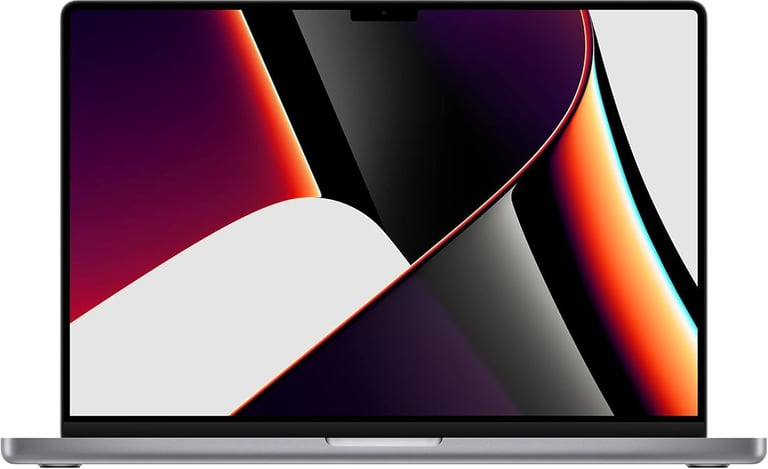
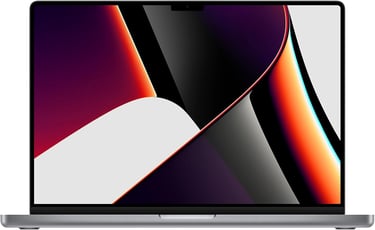
I bought this MacBook in 2021. The fun story about this is that It's actually my first MacBook and I really wanted to go for a Pro model. I know myself, and I know what I need from a laptop. Speed and enough RAM matter far more to me than having the lightest device possible. I carry my laptop in a backpack without any issues, so weight has never really been a dealbreaker.
What I really appreciate about this MacBook is how fast it still feels in 2026. Yes, the M1 Pro chip is no longer the latest. Apple has already moved on to the M5 by the time I’m writing this, but that doesn’t mean this laptop suddenly became outdated. Far from it.
You can now find this MacBook Pro for a much lower price than when it was first released, and it still delivers excellent performance for everyday work. It remains fast, reliable, and more than capable for remote work. On top of that, it supports Apple Intelligence because of the M1 Pro Apple silicon chip, and runs macOS 26, with software support expected for several years to come. That combination makes this a laptop I still genuinely enjoy using every day. There are 2 versions of this laptop available, the 14 inch and the 16 inch. I personally use the 16", because I like to work on a bigger screen. But you also have the 14 inch that is more compact and has the same speed.
AirPods Pro 3
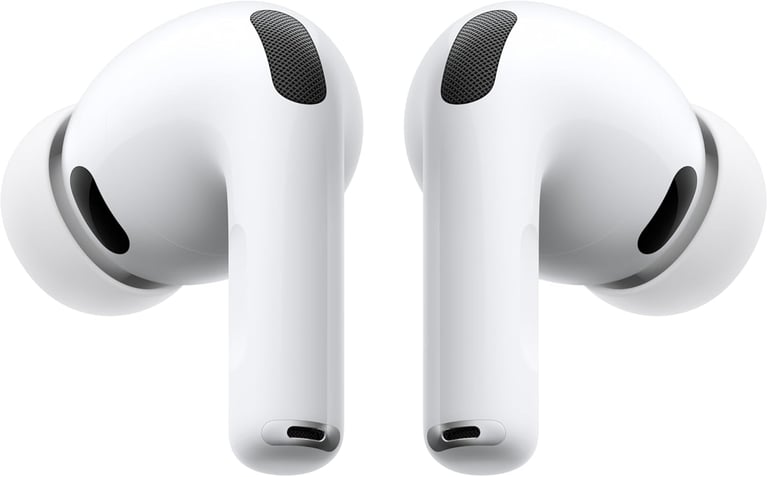
The AirPods Pro 3 are the earbuds I genuinely love using every day. You can read my full long-term review here.
I love these AirPods because they are so light to carry and work really really fast if you are using a MacBook. It's so extremely well integrated with within the ecosystem, that you only need to open the AirPods case and it already connects to your MacBook. The moment you put the AirPods in your ears, you hear the familiar connection sound and you’re instantly ready to go.
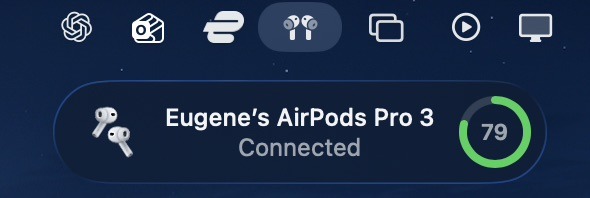

When clicking on the AirPods icon in the top bar you can easily manage your AirPods settings like Listening Mode, Spatial Audio if available Conversation Awareness and more. The intergration with my MacBook is amazing and really fast.
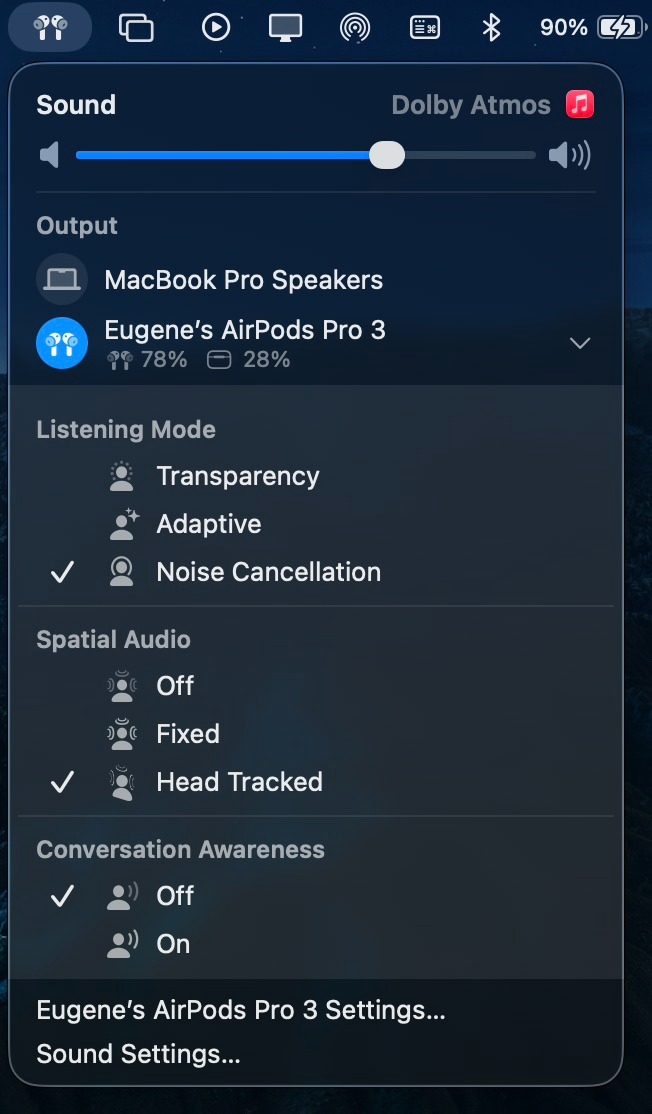
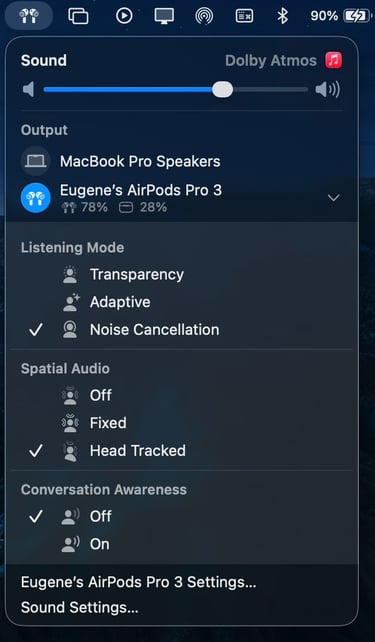
I’ve really become a fan of my AirPods, and I use them every day. Most of the time, they’re my go-to choice for calls and video meetings, where good call quality and comfort over longer sessions are essential to me.
AirPods Max
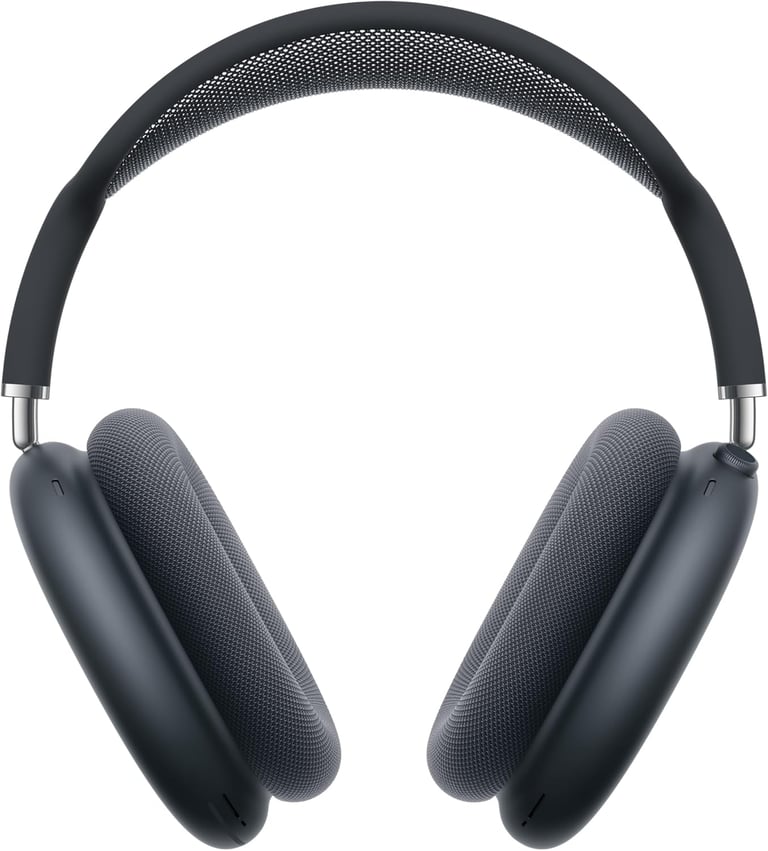
I love using the AirPods Max when I really need to focus. Whether I’m writing blog articles, updating my website, or working on other tasks, music helps me get into the right headspace. I’ve created my own playlists specifically for work, and if I put on the AirPods Max it makes it easy to switch into focus mode. They’re very comfortable for me to wear, even during longer sessions, and they genuinely feel premium. Also the Airpods Max are already sometime on the market, but I still like these headphones. The durability is amazing and also these AirPods are working super fast if you use an MacBook.
They’ve aged incredibly well, both in build quality and performance, which makes them a solid long-term investment.
I use a larger backpack, so Its easy to carry them arround.
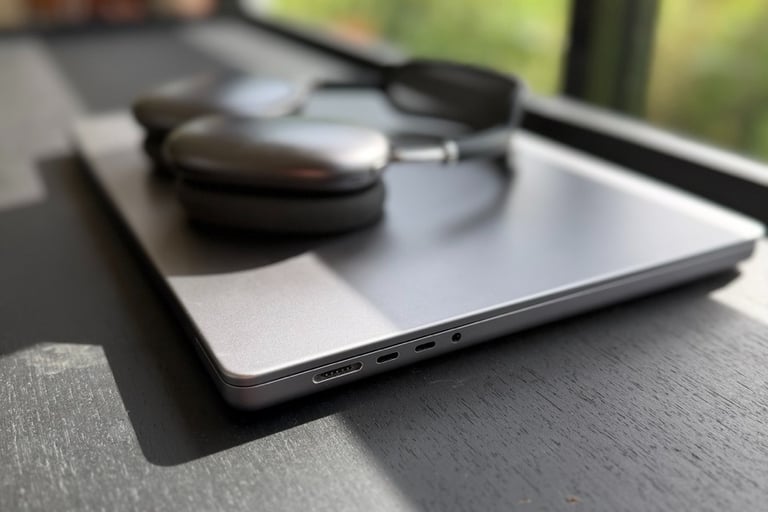
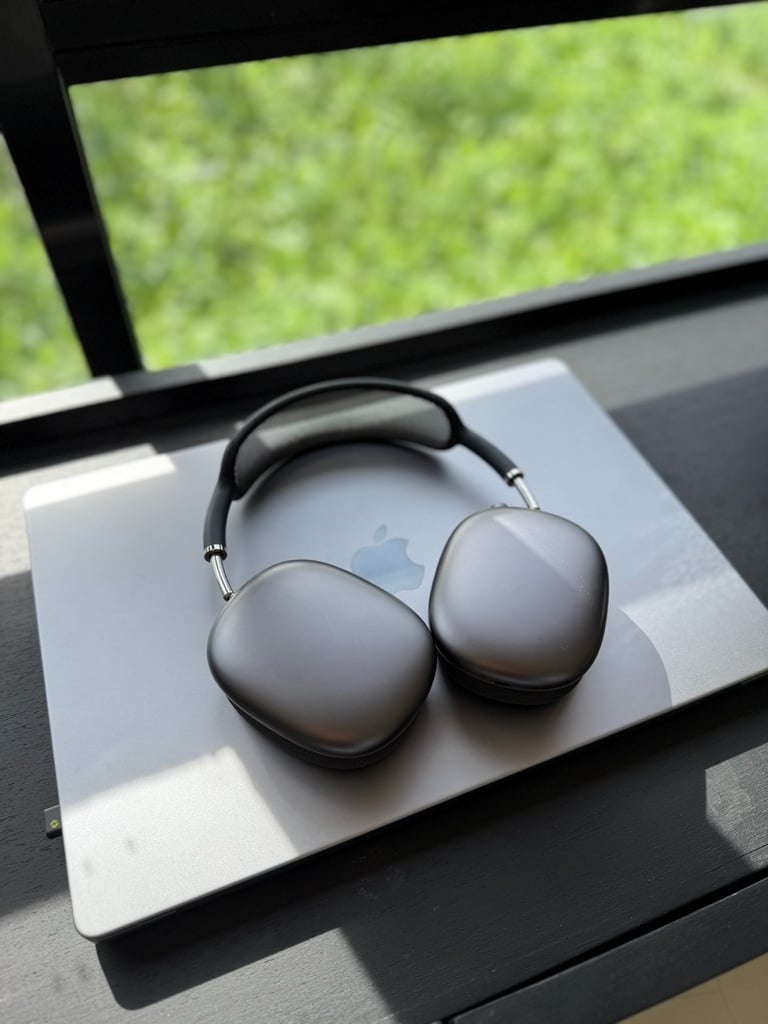
For me, the AirPods Max are more than just headphones. They help me to focus, block out distractions, and really settle into my work. They’ve become part of my daily rhythm, and that’s why they’re still such an important part of my setup. On some days I just carry my MacBook and the AirPods Max and some days I also carry my AirPods Pro 3 with me.
Logitech MX Master 4
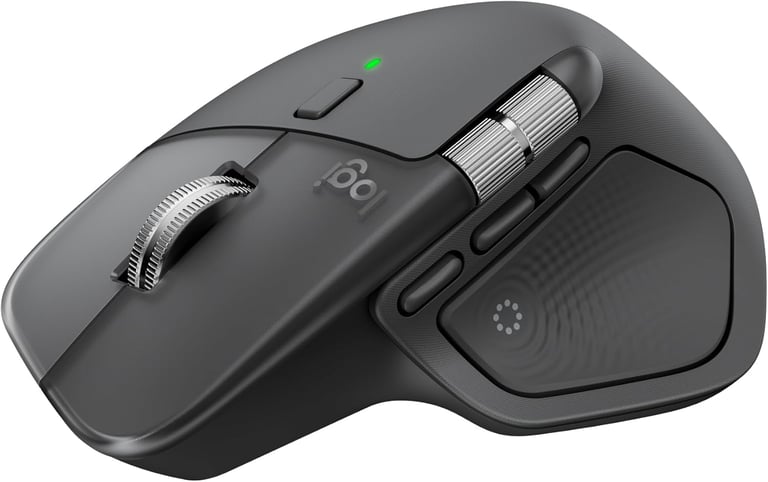
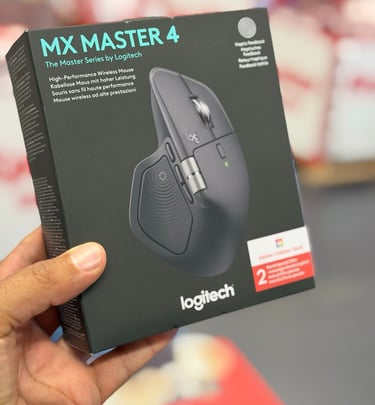
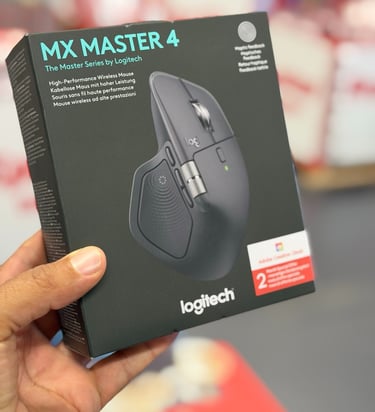
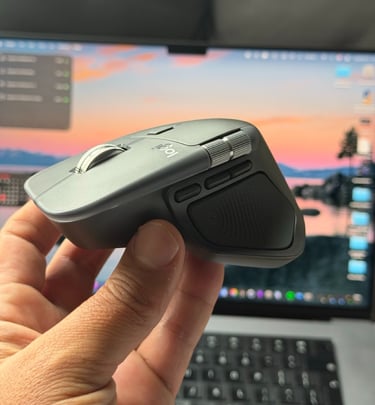
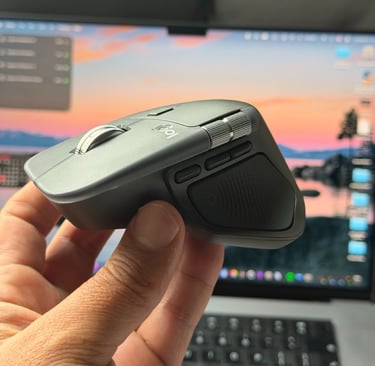
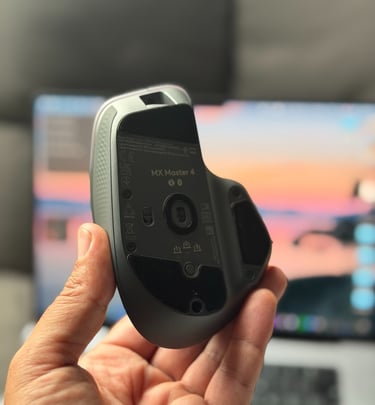
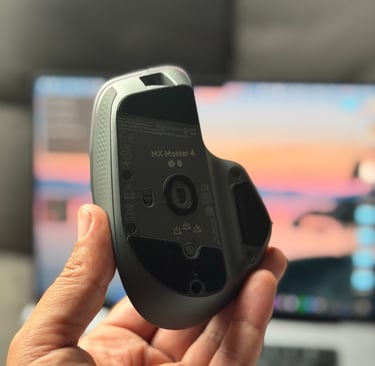
This is one of my favorite accessories to use when working on my MacBook. The Logitech MX Master 4 is an incredible mouse and a clear improvement over the previous version. I used the MX Master 3 for years and was very happy with it, but when the MX Master 4 was released, I was immediately convinced.
What I really like is that the MX Master 4 sits slightly lower than the MX Master 3, which feels more comfortable to me during long work sessions. The haptic feedback is another feature I’ve grown to love. You can set it per app, and the subtle vibrations when scrolling, going back, or moving forward make everything feel more responsive and precise.
It also works perfectly with my MacBook. This is actually THE MacBook mouse that you need for your setup. The Bluetooth connection is fast and reliable, and it fully supports the 120Hz ProMotion display, which makes movements feel very smooth. Small details like these make a big difference in daily use, and that’s why this mouse has earned a permanent place in my setup.
There are 2 versions of this mouse available and it has multiple colours. The Windows version and the Mac version. The Mac and Windows versions of the Logitech MX Master 4 use the exact same hardware. The shape, scroll wheel, sensors, and battery life are identical. The main difference lies in the software.
Out of the box, the button layout and gestures are optimized for either macOS or Windows, so the mouse feels more natural on each system. No matter which one you use, the experience is smooth and if you switch between macOS and Windows, you can easily adjust the button assignments in the Logi Options + app to match your workflow.
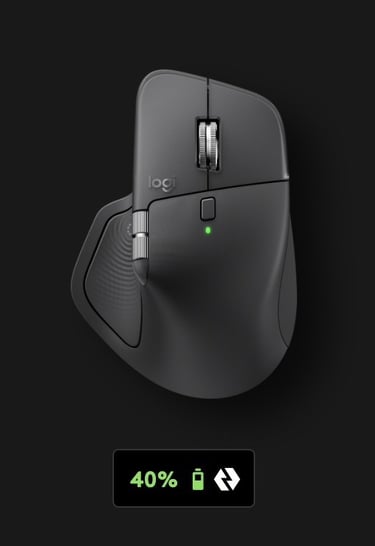
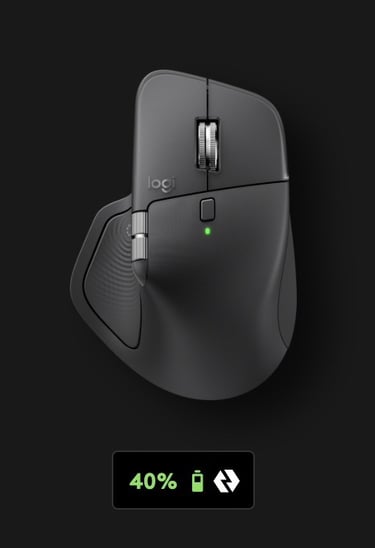
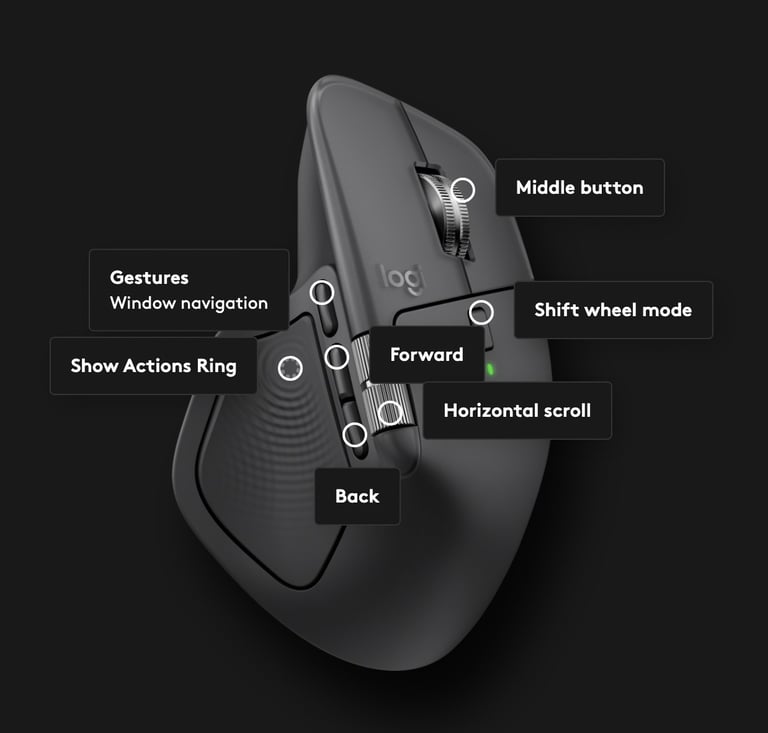
In the Logi Options+ app, you can customize the mouse exactly the way you like it. Everything is clear and easy to adjust, and there’s a handy battery indicator that shows how much charge you have left. And honestly, battery life is nothing to worry about. With its 650 mAh battery, the MX Master 4 easily lasts a little over two months for me, which means I rarely have to think about charging it at all.
You can also set you haptic feedback settings with the Logi Options + app. Simply click on the haptics button on the size to customize it.
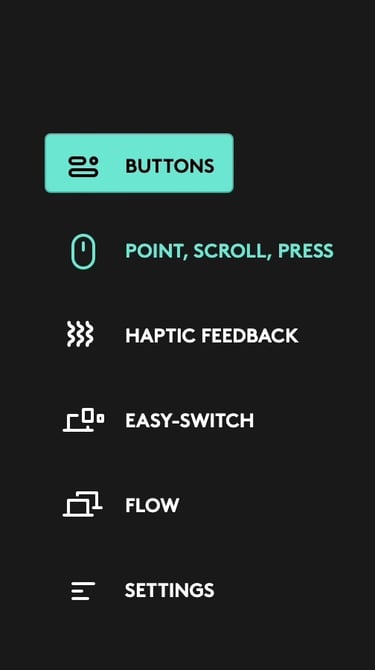
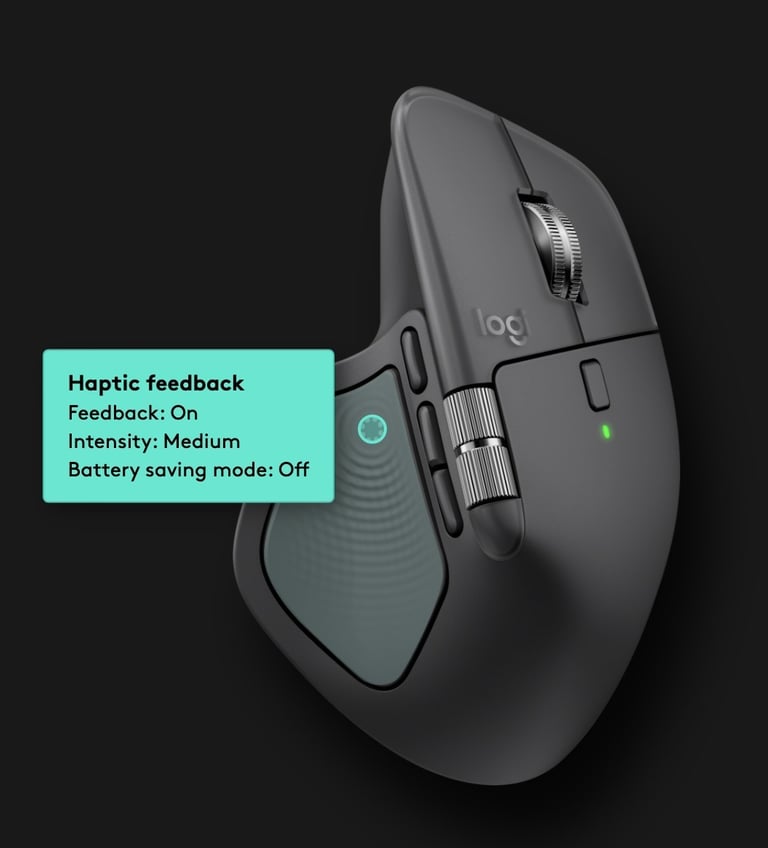
When you open the Haptic Feedback settings, you can fine-tune how the mouse responds and create Smart Actions. For example, you can set a subtle haptic response every time you press the back button, so you get gentle feedback while navigating.In the overview, you’ll see all the custom haptics you’ve set up in one place. And this is just one example. You can create many more Smart Actions to match the way you work and use your apps.
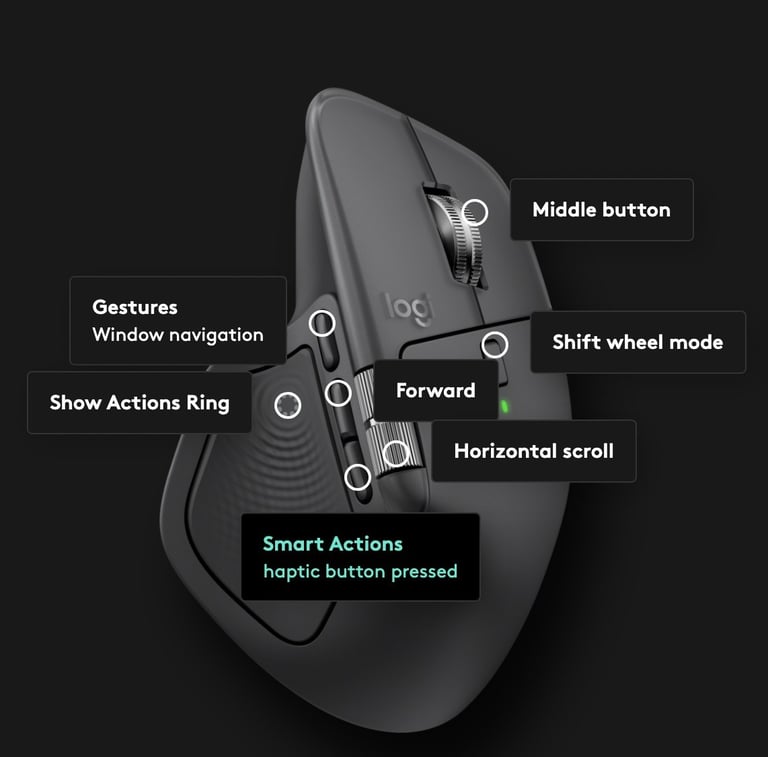
It’s actually really nice to explore this app and get familiar with all the settings you can customize. Installing the software isn’t required, the mouse works perfectly fine without it, but if you want to use features like haptic feedback and Smart Actions, the app is necessary.
The software itself is lightweight and easy to use, and in my experience, it doesn’t slow down my MacBook at all. It simply runs in the background and lets the mouse feel more personal and tailored to how I work.
Battery Life
Battery life is one of the most important things for me when working remotely. I don’t want to constantly think about charging cables or power outlets. I want a setup that lasts throughout the day and just keeps going.
That’s exactly why this setup works so well for me. My MacBook Pro (M1 Pro), AirPods Pro (3rd generation), AirPods Max, and Logitech MX Master 4 easily get me through a full workday without stress.
In normal daily use, think of writing, video calls, browsing, and light editing, everything lasts comfortably all day. The AirPods Pro 3 and AirPods Max give me hours of listening time, the MX Master 4 barely needs charging thanks to its excellent battery life, and the MacBook Pro M1 still holds up incredibly well.
That said, I’m realistic. When I push my MacBook harder, for example during heavier tasks or longer editing sessions, the battery will drain faster. In those moments, I do plug in a charger. I always carry my charger with me. But for most of my workdays, I don’t have to think about it at all.
For me, that’s the sweet spot. A setup that’s powerful enough when I need it, efficient enough to last all day, and reliable enough that battery life never becomes a distraction to me. I also carry a few USB-C and Lightning cables in my bag, along with a power adapter, so I’m always prepared to charge my devices when needed.
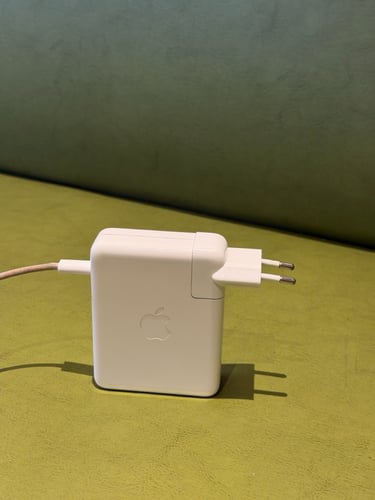
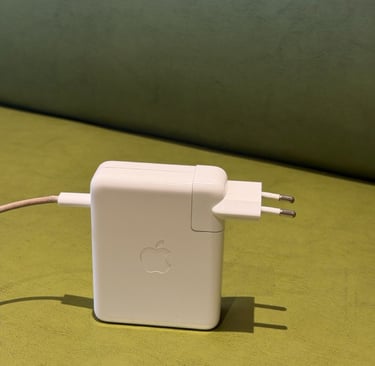
The MacBook Charger that I use is the Apple 140W USB-C Power adapter. Its a very fast charger that charge in 30 min. to 80%. Pro tip: If you’re using an iPhone or iPad with USB-C, you can simply use your iPhone’s or iPads USB-C cable with this power adapter to charge it. It charges noticeably faster, and in my experience it feels safe and well-optimized for everyday use.
My take
At the end of the day, remote work for me isn’t about having the newest or most expensive tech. It’s about choosing tools that fit the way you work and support your daily routine. Over time, I’ve learned what matters most to me: reliability, battery life, comfort, and a setup that simply works without getting in the way.
This setup helps me stay focused, move easily between different work environments, and enjoy the process of working remotely. It’s not about perfection, but about balance. Tech that feels dependable and familiar, so I can focus on my work.
If you’re building your own remote work setup, take the time to find what works best for you.
Find an ecosystem that works well together. In my case, that’s Apple, but it could just as easily be Windows or another setup that fits your needs. What really matters is that your devices speak the same language. When they do, you save time, avoid frustration, and your workflow simply feels smoother.
If you enjoyed this article, feel free to bookmark it so you can come back to it later, or share it with a friend who’s building their own remote work setup.