Your weekly dose of Apple news, iOS guides & more → Subscribe FREE

iOS 27 Is Here: All the New Features You Need to Know
Apple has officially released iOS 27. Discover all the new iPhone features, Liquid Glass design updates, Apple Intelligence improvements, app changes and everything else that’s new.
IOS 27
6/12/202610 min read
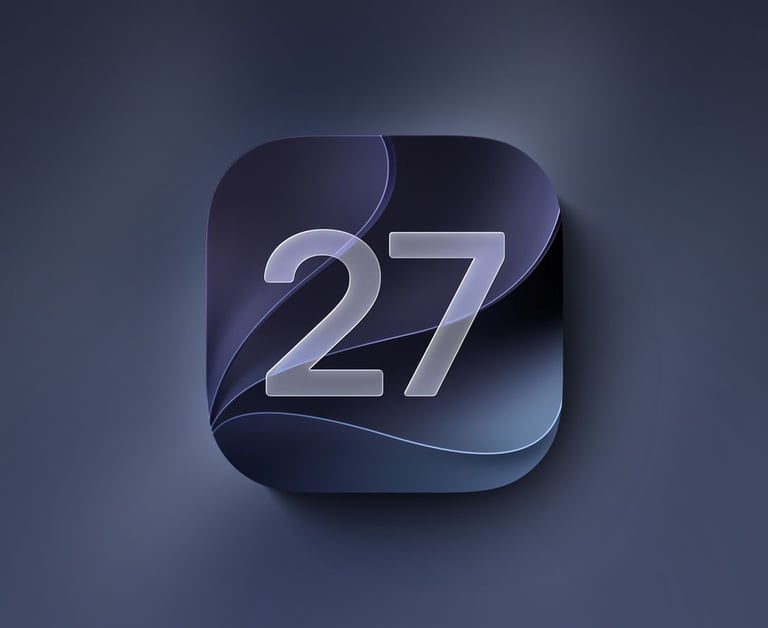
Every year WWDC is one of the biggest moments for Apple fans, and WWDC26 did not disappoint this year. Apple officially announced iOS 27, bringing a fresh new experience to the iPhone with a beautiful new design, the next generation of Siri powered by Apple Intelligence, and a lot of new features that make your iPhone even smarter.
From visual changes and smarter AI features to redesigned apps and small details that make everyday use better, iOS 27 is packed with a lot of improvements and stability and speed.
In this blog article, I’ll walk you through everything new in iOS 27 and all the features coming to your iPhone. I’ve been testing iOS 27 for several days now, and I can already say this: for a first beta, it feels surprisingly fast. But there is much more to talk about.
iOS 27 Supported iPhones
One of the biggest surprises this year is that iOS 27 still supports all iPhone 11 models and the iPhone SE 2nd gen. Apple introduced the iPhone 11 back in 2019, which makes it a 6-year-old iPhone now in 2026.
Getting a brand-new iOS update on a device that old is seriously impressive, and it shows why Apple devices age so well. See below for a list off all supported iPhones that can update to iOS 27.
iPhone 17 Pro Max
iPhone 17 Pro
iPhone Air
iPhone 17
iPhone 17e
iPhone 16 Pro Max
iPhone 16 Pro
iPhone 16 Plus
iPhone 16
iPhone 16e
iPhone 15 Pro Max
iPhone 15 Pro
iPhone 15 Plus
iPhone 15
iPhone 14 Pro Max
iPhone 14 Pro
iPhone 14 Plus
iPhone 14
iPhone 13 Pro Max
iPhone 13 Pro
iPhone 13
iPhone 13 mini
iPhone 12 Pro Max
iPhone 12 Pro
iPhone 12
iPhone 12 mini
iPhone 11 Pro Max
iPhone 11 Pro
iPhone 11
iPhone SE (2nd generation and later)
New features
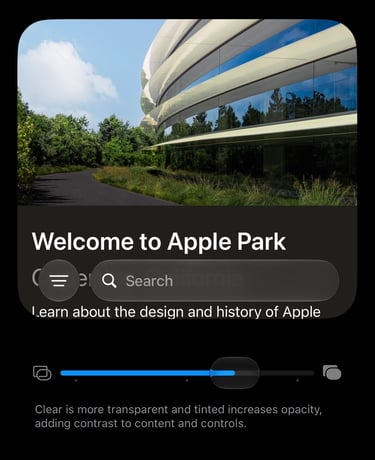
iOS 27 comes with a lot of new features, but one of the biggest changes that stands out is the new systemwide Liquid Glass slider.
With iOS 26.1, Apple introduced the option to switch between a Clear and Tinted appearance. In iOS 27, Apple takes this even further by giving you more control over the Liquid Glass effect. This allowing you to make it look like real glass or choose a more subtle tinted style. You can find this new option by going to Settings → Appearance on your iPhone.
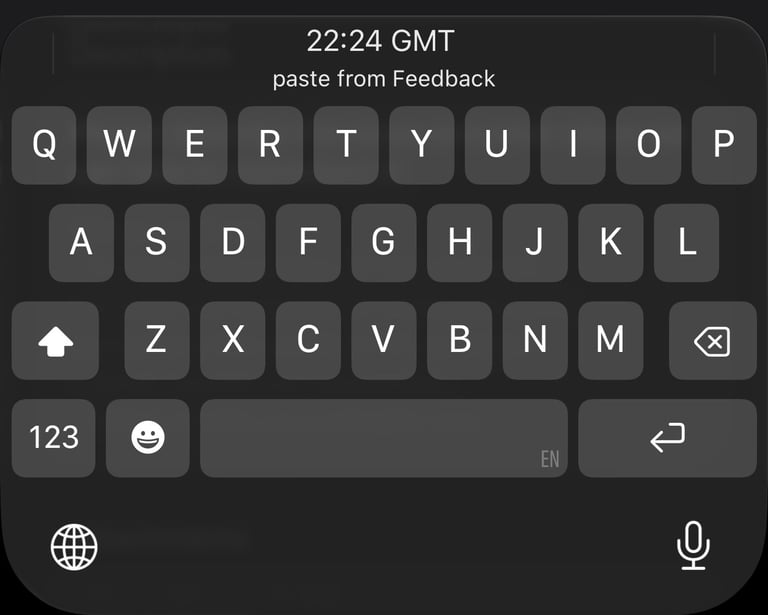
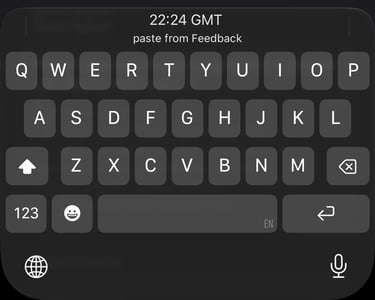
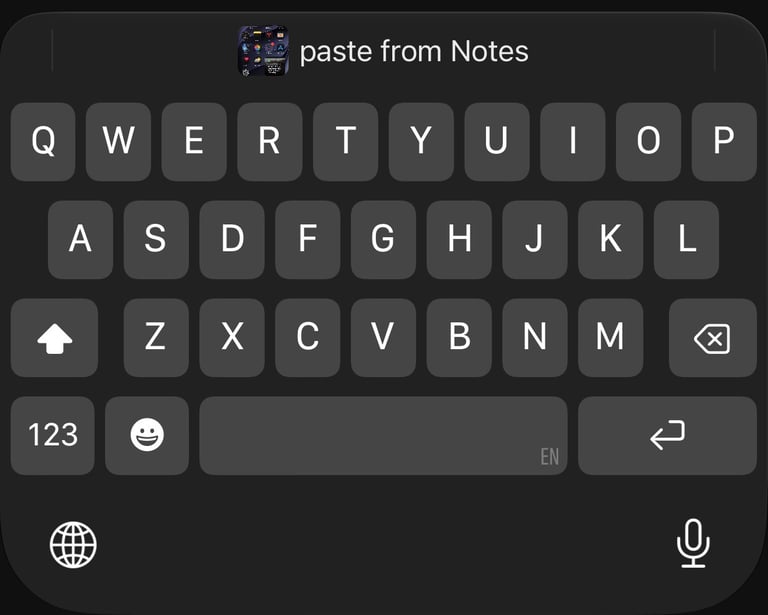
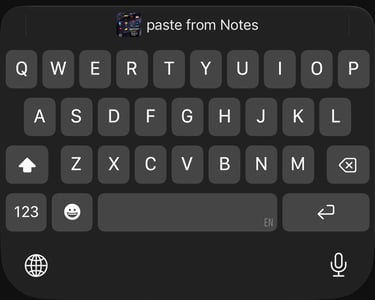
Another small but useful iOS 27 detail. When you copy text or take a screenshot, iOS now shows a paste prompt directly in the keyboard. This makes copying and pasting much faster and more convenient. This new feature works automatically and is visible as soon as you start copying something or take a screenshot that you want to paste elsewhere.
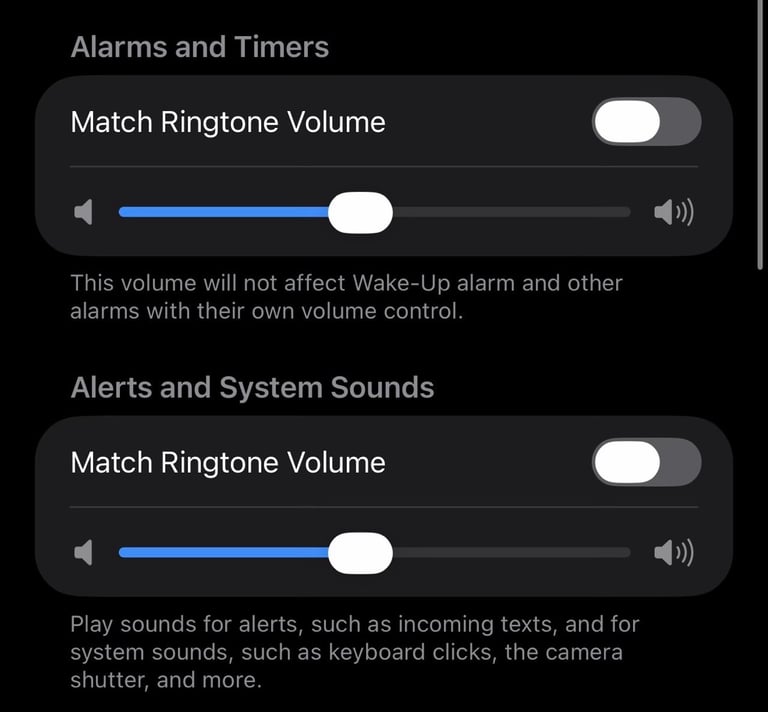
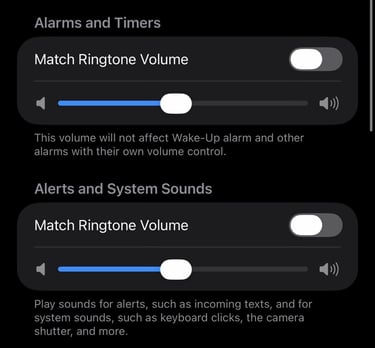
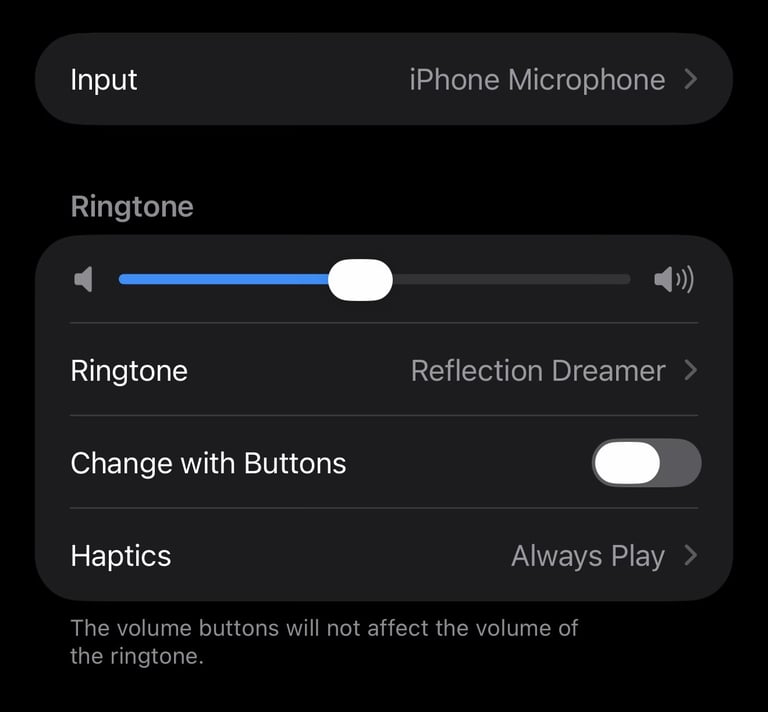
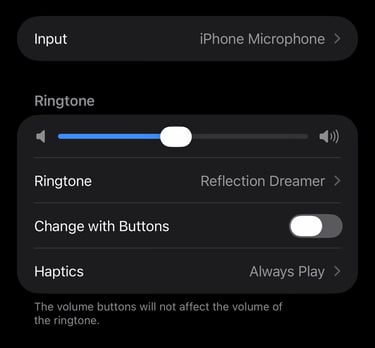
iOS 27 adds new volume sliders for Ringtone, Alarms and Alerts. You can now match them with your ringtone volume, or set each one separately. You can find the new setting by opening Settings → Sound & Haptics on your iPhone.
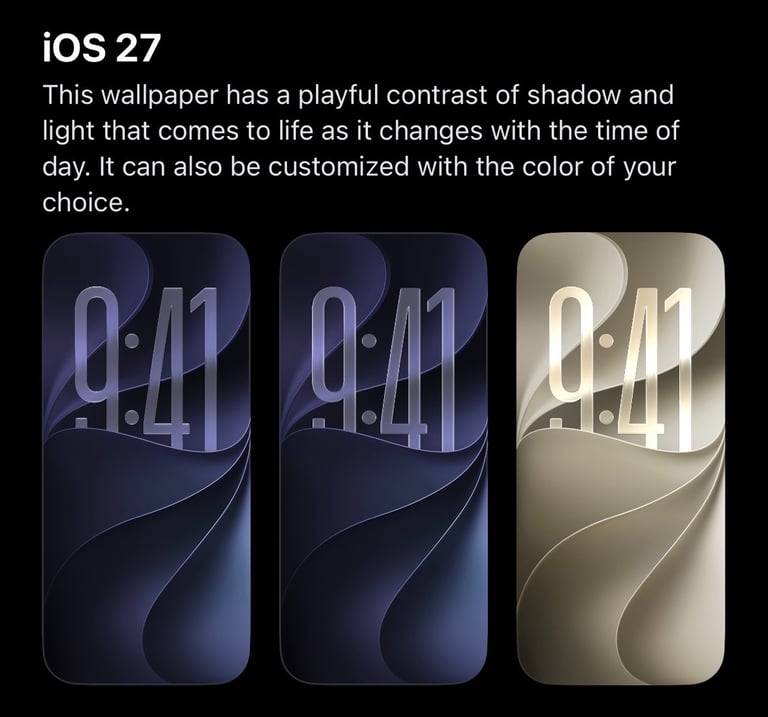
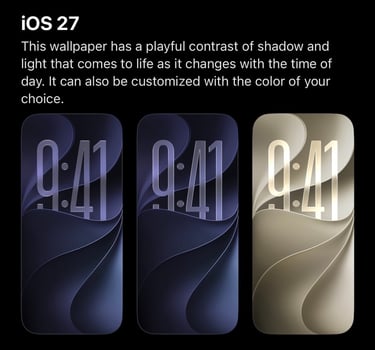
iOS 27 dev beta 1 adds 3 new default wallpapers. Including Dynamic and Color. If you choose the color options you have plenty of different color options to customize it. If you look closely to the wallpapers you will see the number 27 within the wallpaper. Pretty cool he?
To try the new wallpapers yourself, go to Settings → Wallpaper → Add New Wallpaper and customize your iPhone with a fresh new look.
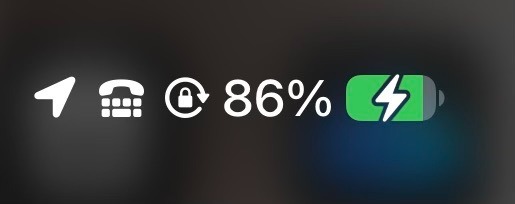
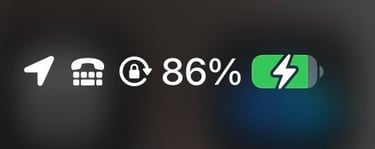
iOS 27 also introduces an updated battery icon and refreshed Battery Settings. Everything feels cleaner, smoother and more organized. You can see the new battery icon by swiping down to open Control Centre.
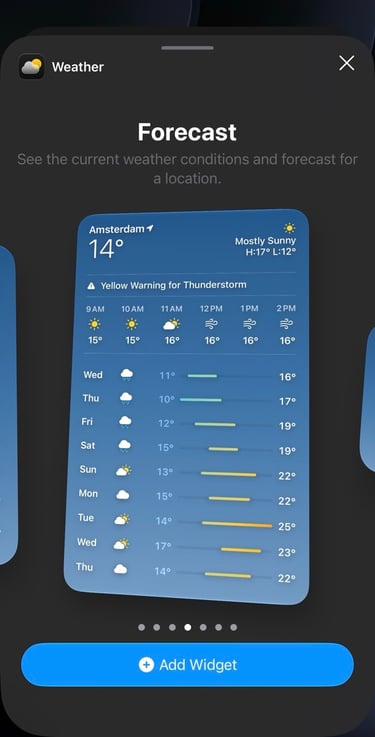
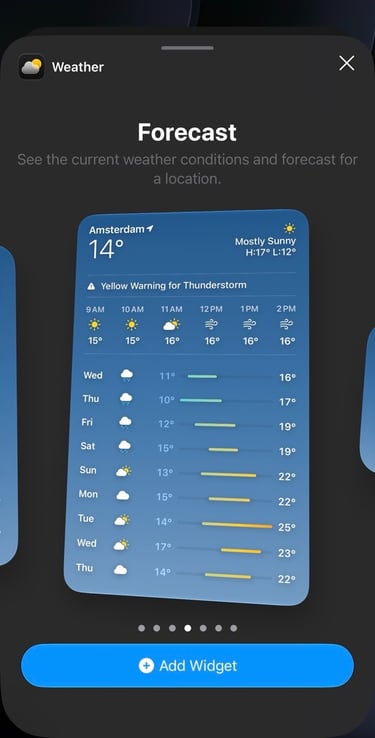
iOS 27 also adds new XL widget sizes, giving you bigger widgets with more information at a glance. XL widgets are available for apps like Weather, Home, Smart Stack, Calendar, Music, News, Notes, Stocks, TV, Photos, Reminders and Shortcuts. To use the new XL widgets, simply press and hold your Home Screen, tap Add Widget, and choose your favorite XL widget.
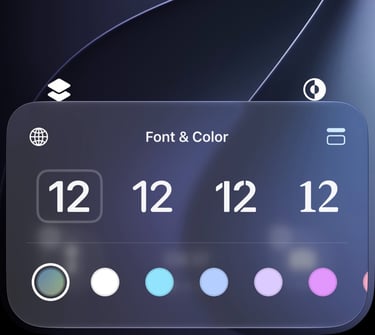
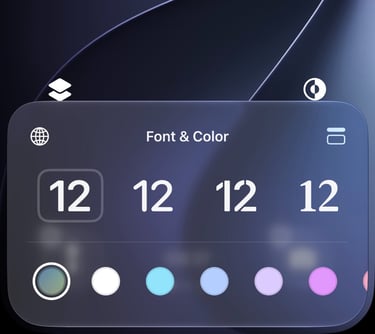
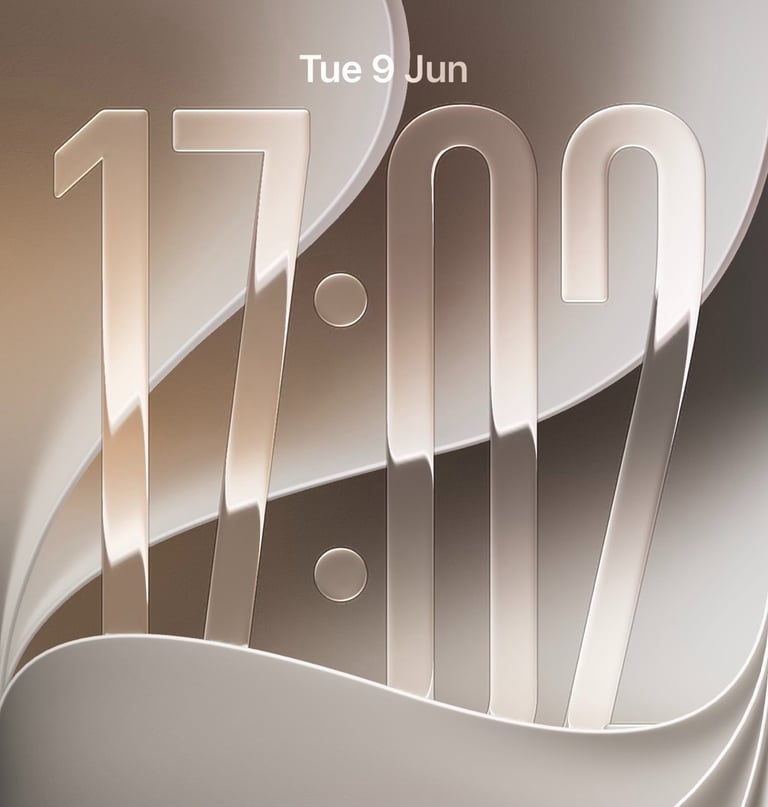
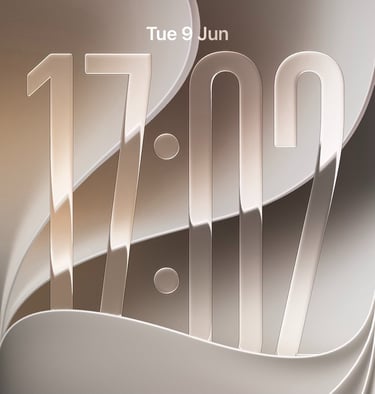
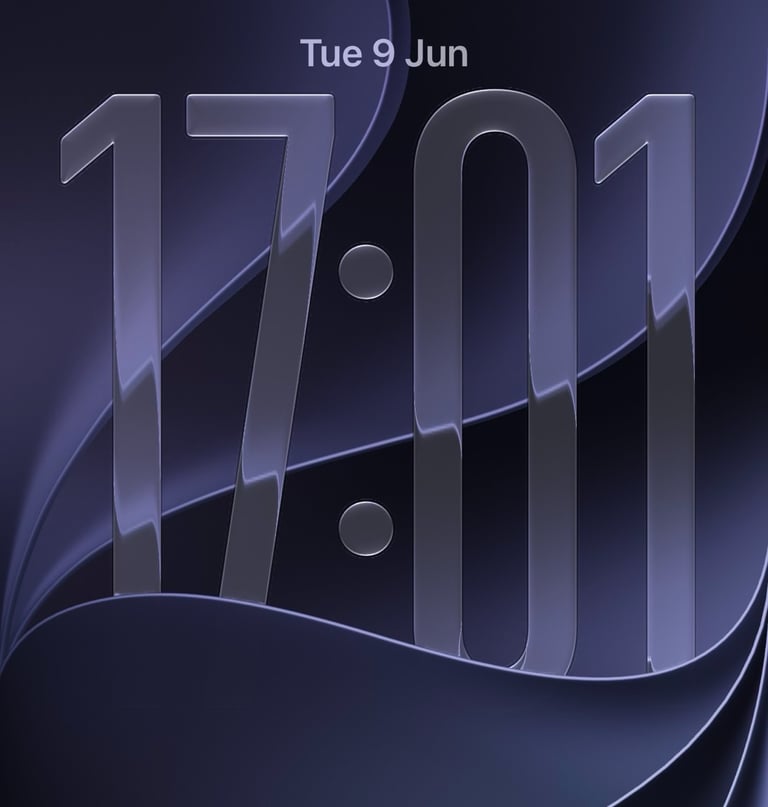
iOS 27 now lets you add a small clock to your Lock Screen and place it directly inside the date bar for a cleaner and more personalized look. To switch to the new small clock, press and hold your Lock Screen, tap Customize, and then tap the clock. The Font & Color menu will appear, and on the right side you’ll see a toggle that lets you switch between the large and small clock.
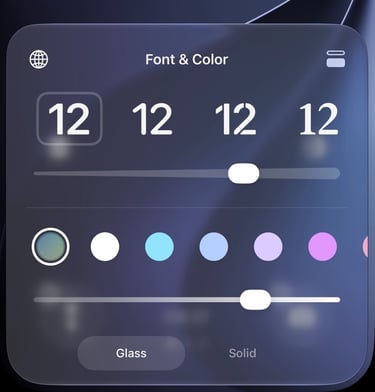
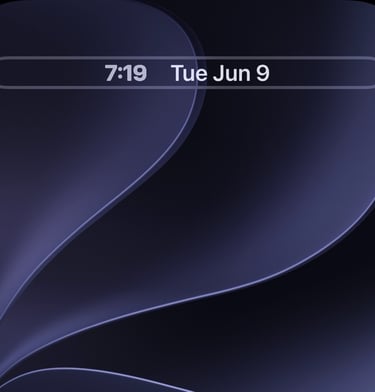
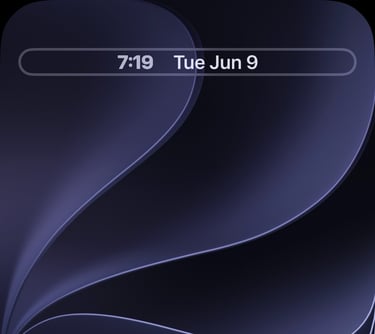
iOS 27 now makes Indexing in Progress visible inside Settings. Your iPhone already indexed in the background before, but now you can actually see when it’s happening. This process can take a few days, depending on your iPhone. You can check the status in Settings. If your iPhone is still indexing, you’ll see the message right below your Apple Account.
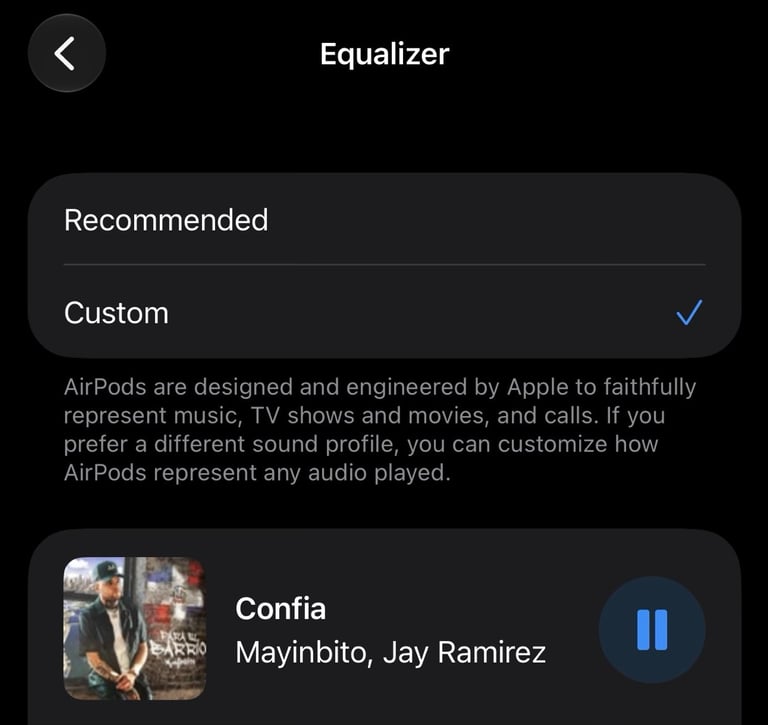
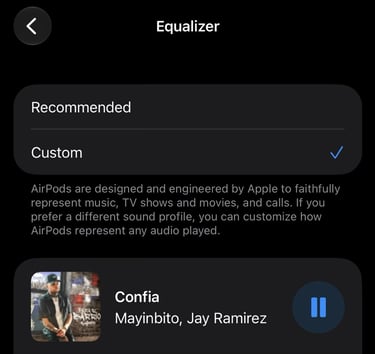
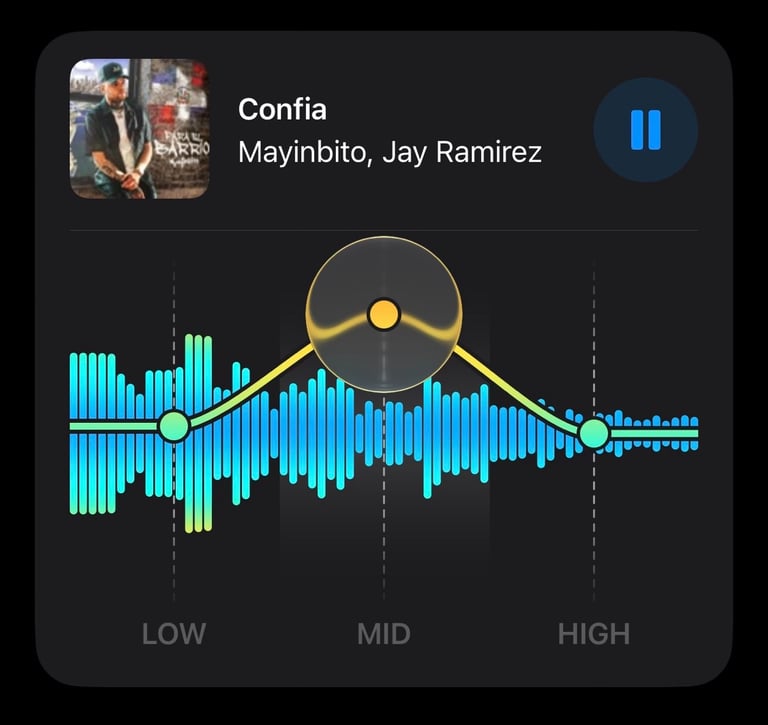
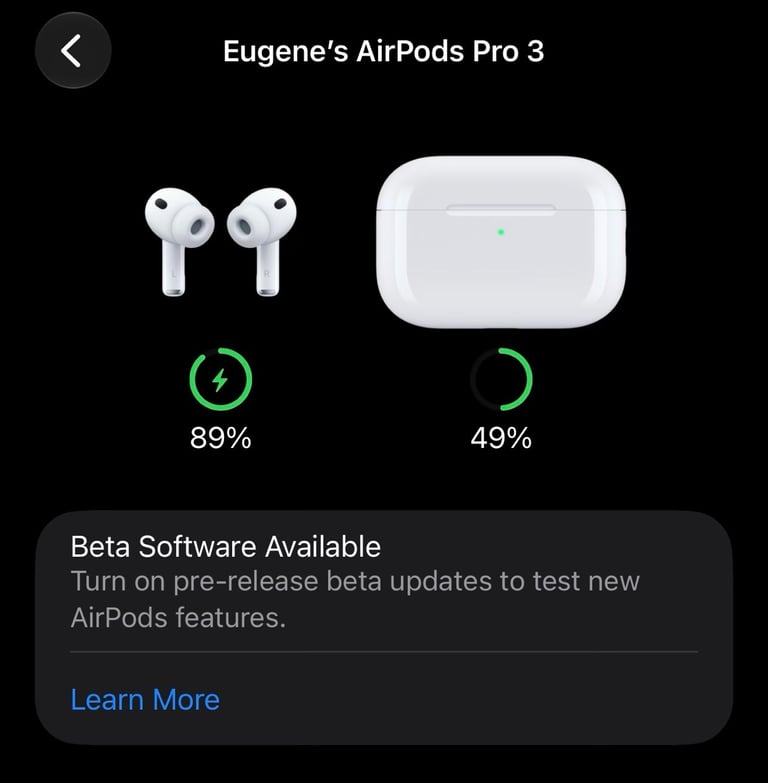
iOS 27 adds a new Custom EQ feature for AirPods. To use it, you’ll first need to turn on beta firmware updates for your AirPods. You can do this in AirPods Settings when your AirPods are connected to your iPhone. Once the beta firmware is installed, Custom EQ will appear under Audio & Routing.
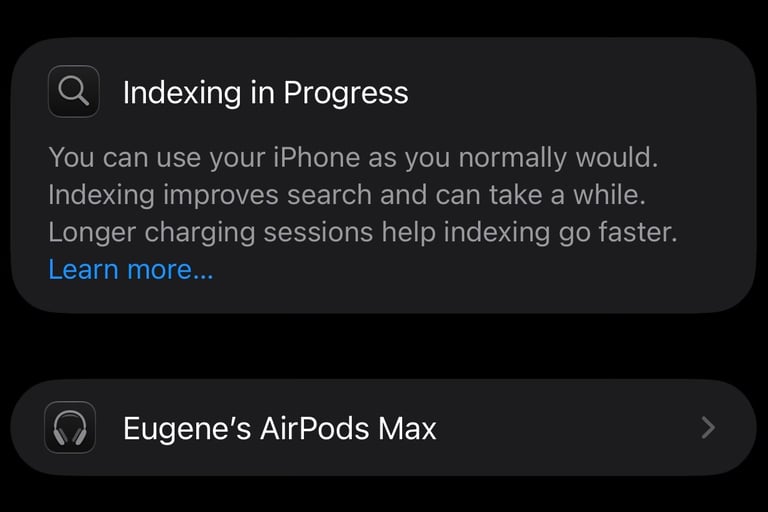
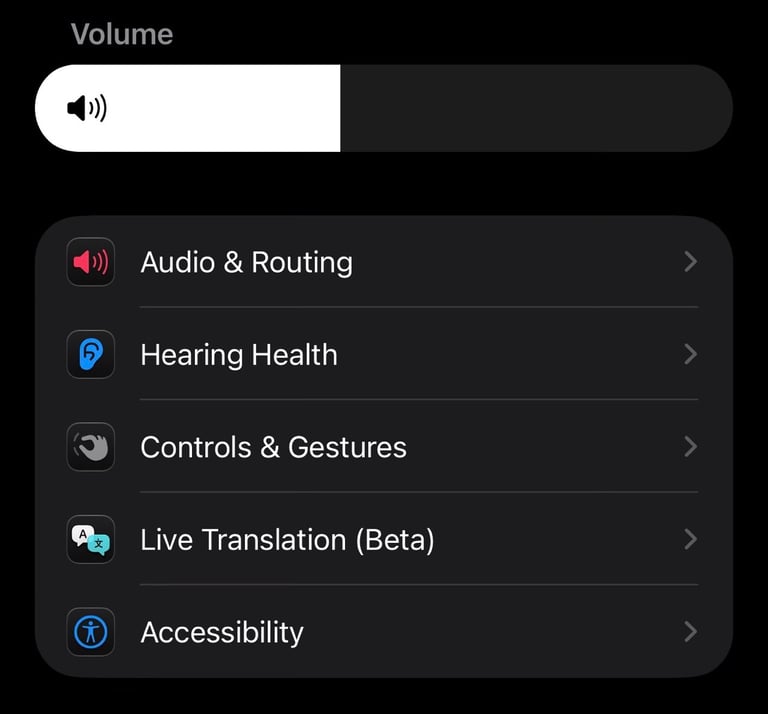
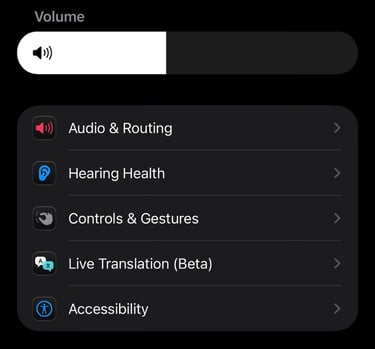
iOS 27 gives the AirPods Settings menu a cleaner update. It has a cleaner layout, better structure and everything feels more in place. You can see the new AirPods Settings menu by simply connecting your AirPods to your iPhone and opening your AirPods settings.
Liquid Glass now has a more realistic glass look when you move the clock slider all the way down to Clear. You can try this by pressing and holding your Lock Screen, tapping Customize, selecting the clock, and moving the second slider all the way to the left. This was already possible in iOS 26, but in iOS 27 the clear glass effect looks much more refined.
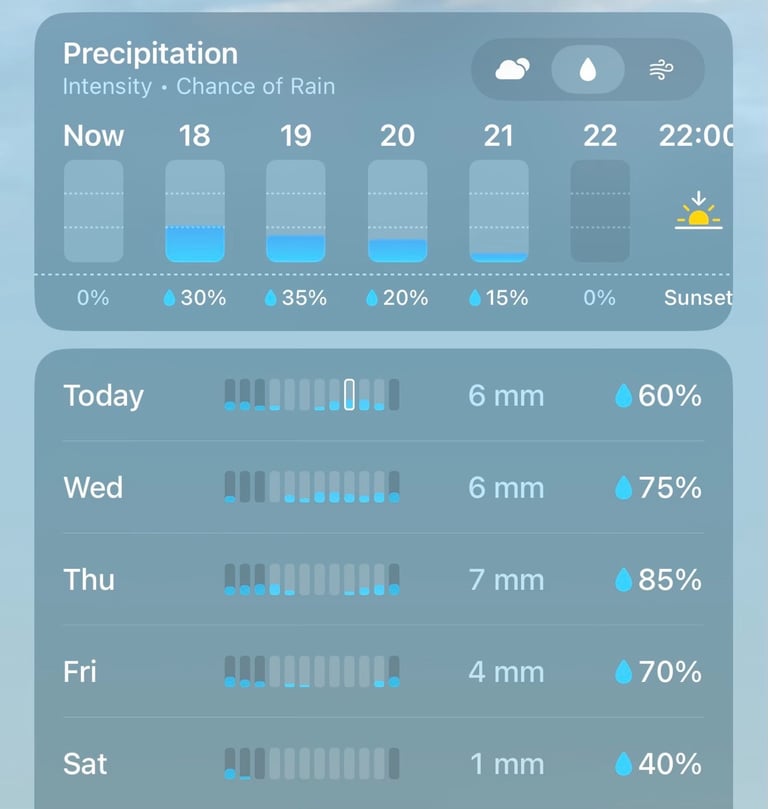
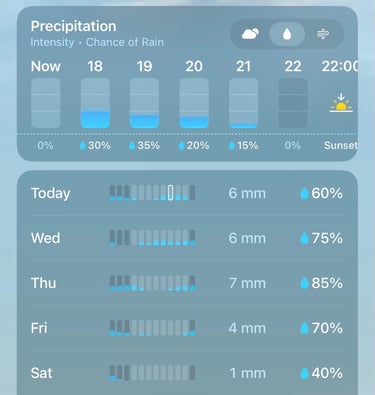
The Weather app in iOS 27 just got a Liquid Glass glow-up. It has a new icon, cleaner layout, and you can now tap between Conditions, Precipitation and Wind.


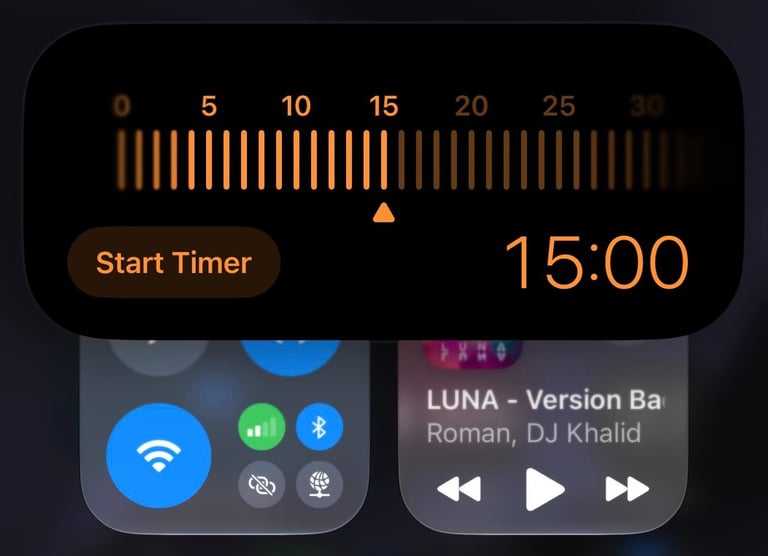
iOS 27 makes timers feel much more alive. Starting a timer from Control Centre now comes with updated visuals and smoother Dynamic Island integration.
Even if your iPhone does not have the Dynamic Island, you can still see the new timer visual. The only difference is that when you start the timer from Control Centre, it continues running in the background instead of showing the live countdown inside the Dynamic Island.
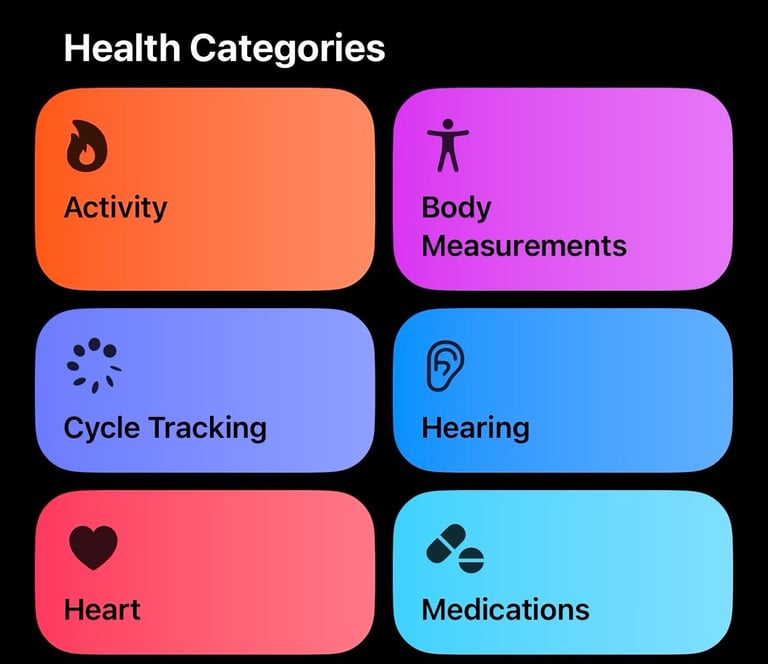
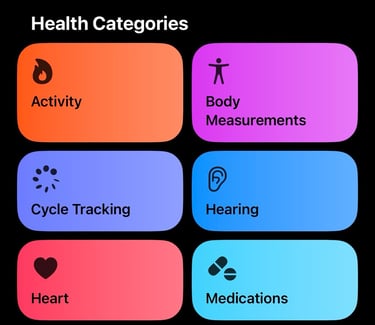
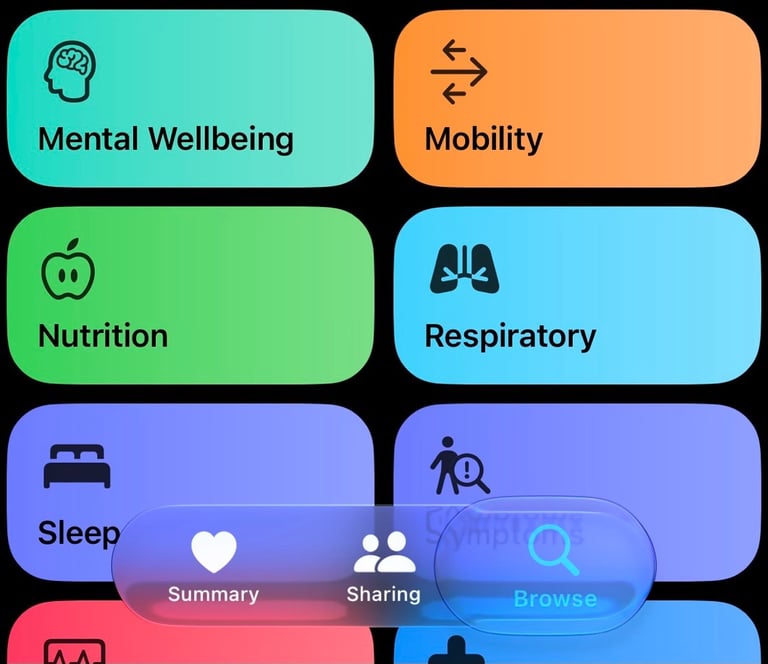
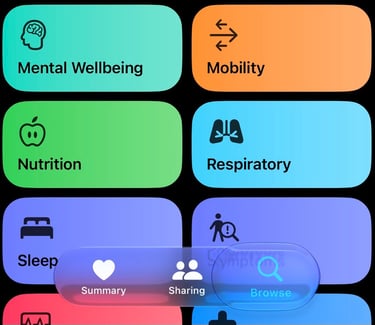
Health gets a cleaner look in iOS 27. The Apple Health app now has an updated Liquid Glass navigation bar and more organized Health Categories. There also appears to be a new Nutrition category, making it easier to track your food and nutrition data, with possible integration from third-party apps.
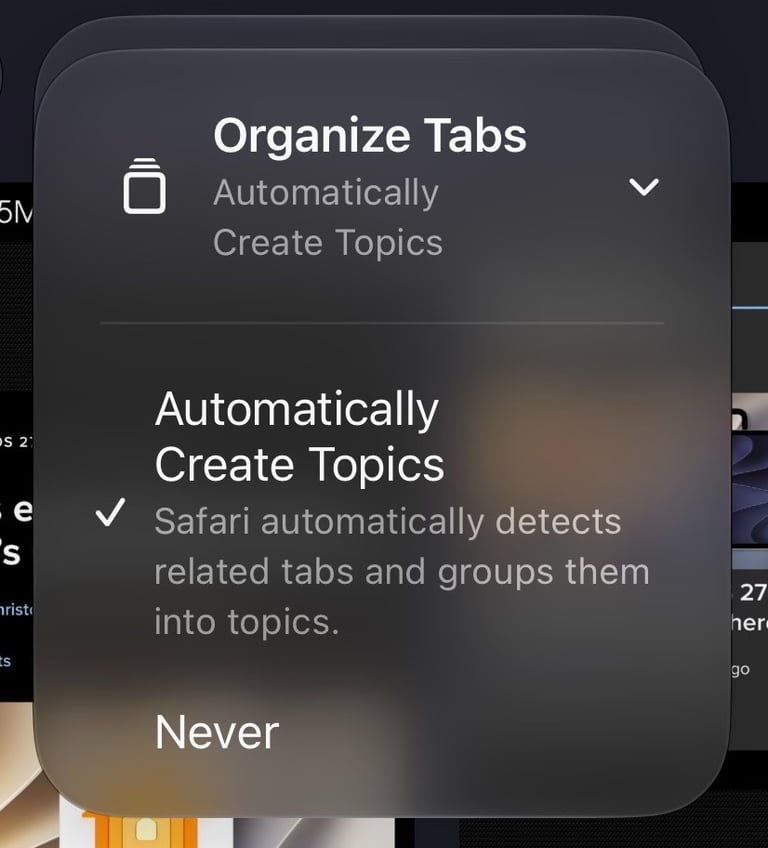
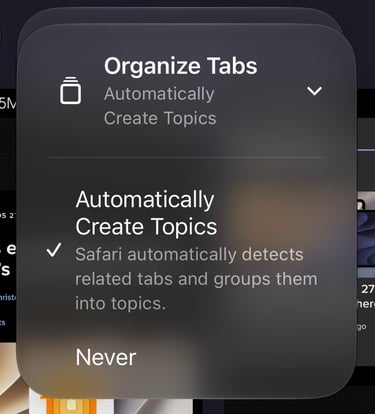
Safari now helps clean up your tabs automatically in iOS 27. It can detect related tabs and organize them into topics, making it easier to keep everything structured.Please note that this feature requires an iPhone with Apple Intelligence, which means you’ll need an iPhone 15 Pro or newer.
To use this feature, open Safari and go to your tabs overview by tapping the button in the bottom-right corner. Next, tap the three lines next to the Search button in the top-left corner (only visible on iPhones that support Apple Intelligence), select Organize Tabs, and choose Automatically Create Topics.
Siri AI
Apple has officially introduced Siri AI, bringing Siri and Apple Intelligence much closer together across the Apple ecosystem.
On iPhone, Siri AI now has its own dedicated app and a new visual experience inside the Dynamic Island. You can swipe down from the Dynamic Island to open the new Siri interface, or still use the classic Siri shortcuts you already know.
The new Siri also feels more personal. Apple is adding more voice customization, including options for pace and expressivity, instead of only choosing from preset voices. There is also a new Write with Siri feature, which can help you write in a way that feels closer to your own communication style.
Siri AI is not only coming to iPhone. It is also integrated into Spotlight on Mac, gets a cleaner monochrome menu bar icon, works with CarPlay and AirPods, and is part of watchOS 27. On Apple Vision Pro, Siri appears as a floating orb that you can activate just by looking at it.
Apple is also bringing Siri into the Camera app as a dedicated mode. This makes it possible to point your iPhone at real-world information, like a poster or a bill, and let Siri help you take action. From splitting a bill to adding multiple events to your calendar
Apple says Siri chats are synced privately across iCloud, and Siri AI will launch in English first before expanding to more languages.
Siri AI is not available in the EU and in China. To get access to the new Siri, you first need to join the waitlist. You can do this by going to Settings → Siri and tapping Try the New Siri.
Once you’ve joined, it will show Joined Waitlist. After a while, you’ll receive a notification when the new Siri is ready for your iPhone.
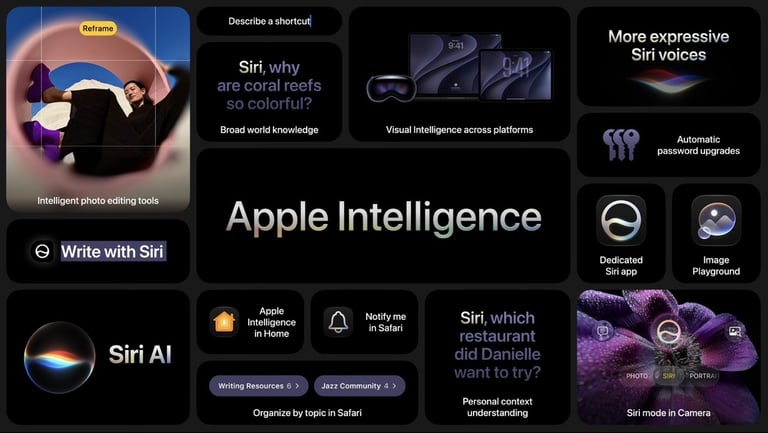
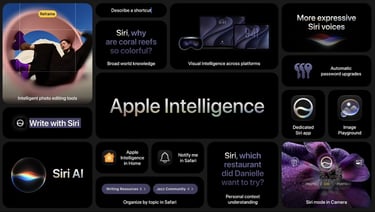
Apple Intelligence integrated in iOS default apps.
Apple Intelligence is also getting much deeper inside Apple’s system apps, and this is where things start to feel really useful.
In Safari, Apple Intelligence can now organize your tabs by topic. These topics can update automatically while you browse, and you can close tabs by topic or move them into Tab Groups. Safari is also getting a new Notify Me feature, which can monitor specific pages for changes based on natural language input.
Messages is becoming more context-aware too. It can suggest useful actions based on your conversations, like creating a reminder, adding a note or finding photos that were mentioned in a chat.
Mail and Calendar are also getting smarter. Mail can give more helpful suggestions based on the context of your emails, while Calendar now supports natural language input for creating events, including contacts and locations.
The Phone app is getting a very practical upgrade as well. Apple Intelligence can surface useful call context, like a flight confirmation number when you call an airline. Apple says this runs on-device.
In the Home app, Apple Intelligence can combine accessory notifications into one smarter, updating alert. HomeKit Secure Video is also getting text descriptions and improved search for video clips, with 4K support coming as well.
Shortcuts might become much easier to use too. Instead of building everything manually, you can describe what you want a shortcut to do, and Apple Intelligence can help create it for you.
Apple is also updating Image Playground, shifting the focus from simple AI image generation to tools that improve your own images. Think better backgrounds, contact posters and more creative edits.
Photos is getting smarter too, with an improved Clean Up tool, better cropping through AI reframing, and a new Spatial Reframing feature that lets you change the framing of a photo afterwards.
iOS 27 Developer Beta 1
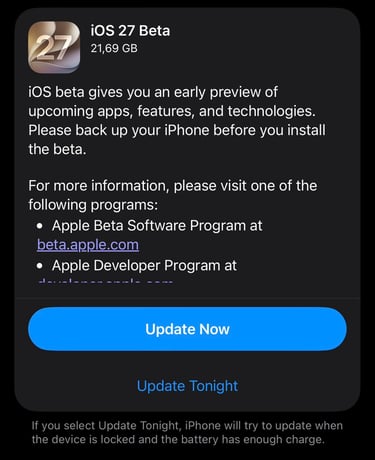
iOS 27 Developer Beta 1 is now available to download. If you prefer to wait for the public beta, Apple is expected to release it in July.
Before installing iOS 27, make sure you back up your iPhone. Beta software can still contain bugs, so it is not recommended to install it on your main iPhone. If you still want to test it, make a proper backup first. You may also need a Mac if you want to restore your iPhone back to the latest stable iOS release.
If you enjoy my content, you can also follow me on my Threads page. I post daily Apple insights, aesthetic photos, iOS tips, and the latest Apple news there. I’d really appreciate your support and would love to see you there. Scan the below QR code to go to my profile.