Your weekly dose of Apple news, iOS guides & more → Subscribe FREE

How to prepare your iPhone before installing the latest iOS beta
Before installing the latest iOS beta, make sure your iPhone is ready. Follow these essential steps to back up your data, prevent common issues, and enjoy the newest iOS features safely.
IOS GUIDE
7/23/20267 min read
How to Prepare Your iPhone Before Installing the Latest iOS Beta
You want to install new beta software on your iPhone, but you dont know where to start?
Every time Apple releases a new iOS beta, thousandds of iPhone users can't wait to install it. New features, updated apps, and the latest design changes are exciting. But here is the thing: installing beta software without preparing your iPhone can quickly turn your excitement into BIG frustration.
Beta software is still a work in progress. It may contain bugs, cause apps to crash, drain your battery faster, or even make your iPhone less reliable. That's why spending time, preparing your device before updating, can save you hours of troubleshooting later.
Whether you're installing your very first iOS beta or you test every beta Apple releases, this article will walk you through everything you should do before tapping Install. By the end, you'll know how to protect your data, avoid the most common mistakes, and enjoy the latest iOS beta with confidence.
Let's get your iPhone ready.
Join the Apple Beta Software Program
Before you can install an iOS beta, you need access to Apple's beta updates.
If you've never installed a beta before, visit beta.apple.com and sign in with your Apple Account. Once you've enrolled, beta updates will become available on your eligible devices.
After that, go to:
Settings → General → Software Update → Beta Updates
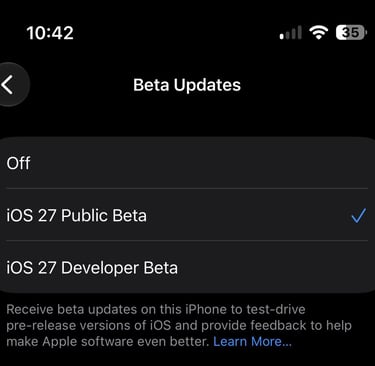
Here you can choose the latest iOS Public Beta or iOS Developer Beta. If you don't see the Beta Updates option, make sure you're signed in with the same Apple Account you used to enroll and that your iPhone supports the latest beta.
Once the beta appears, don't install it just yet. There are a few important things you should do first to protect your data. But first I want to explain the difference between the iOS Public Beta and iOS Developer Beta.
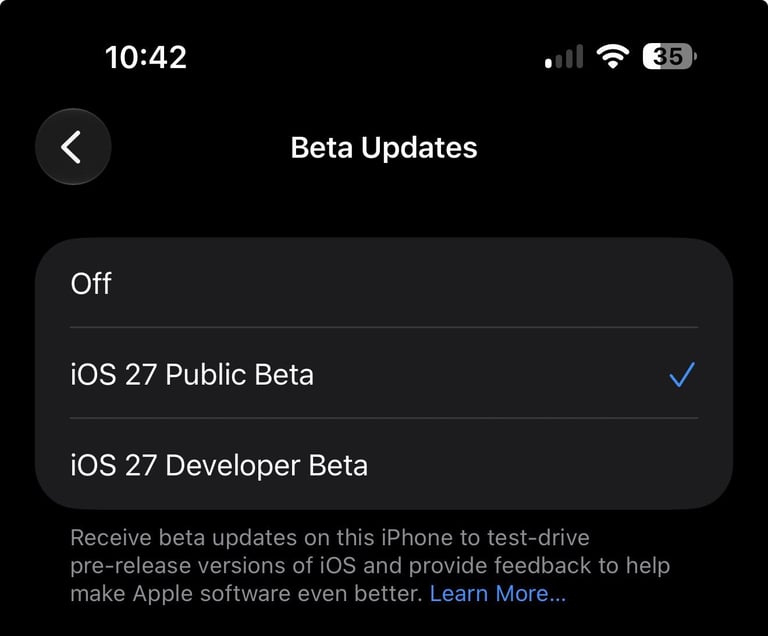
What's the Difference Between the iOS Public Beta and Developer Beta?
Apple offers two types of beta software: the Developer Beta and the Public Beta.
The Developer Beta is released first and is mainly intended for app developers who want to test their apps before the official iOS release. Because it arrives earlier, it usually contains more bugs and unfinished features.
The Public Beta is released a little later. Apple uses the extra time to fix some of the biggest issues found in the Developer Beta, making it a better choice for most people who want to try new iOS features before everyone else.
If you're new to beta software, the Public Beta is usually the safer option. If you like testing the very latest features as soon as they're available and don't mind the occasional bug, you may prefer the Developer Beta.
No matter which beta you choose, remember that both are still test versions of iOS. Always make a backup of your iPhone before installing one. Let's talk about that now.
Update to the Latest Stable Version of iOS First
Before installing an iOS beta, it's a good idea to update your iPhone to the latest stable version of iOS.
For example, if your iPhone is still running iOS 18 and you want to try the iOS 26 or iOS 27 beta, first update to the latest stable version of iOS 26. Starting from the latest stable release gives you the best foundation before installing beta software. It also means your iPhone has the latest security updates, bug fixes, and performance improvements. That's why Apple recommends keeping your device up to date, even if you plan to install a beta afterward.
To check for updates, go to:
Settings → General → Software Update
If an update is available, tap Update Now and let your iPhone finish installing it before continuing.
Why this matters
Updating to the latest stable version also makes it much easier if you ever decide to leave the beta. If you skip the latest stable version and install a beta directly from an older version of iOS, you can't simply go back to that older version later. Apple usually stops signing older iOS versions, which means you won't be able to restore them.
That's why it's so important to update first and create a backup while you're still on the latest stable version of iOS.
Create a Backup of Your iPhone
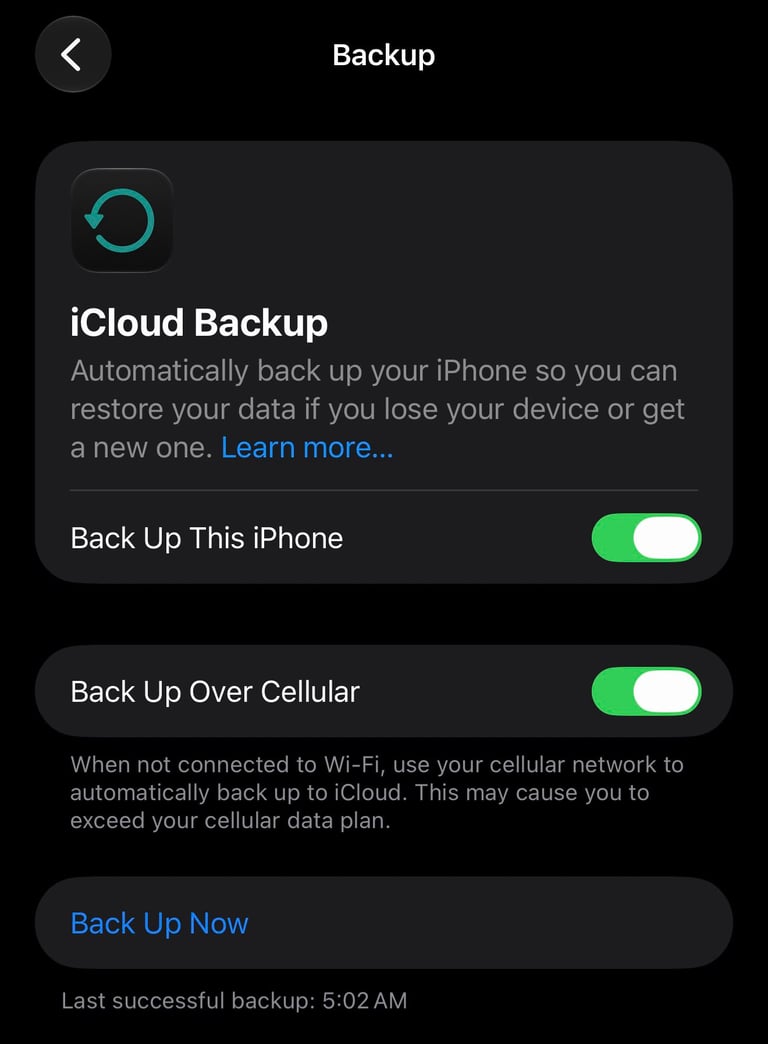
This is the most important step before installing any beta. Although most beta updates install without any issues, beta software can still contain bugs. In rare cases, something can go wrong during the installation or you may decide that the beta isn't stable enough for everyday use.
A backup keeps your photos, messages, apps, settings, and other important data safe.
You can back up your iPhone in two ways:
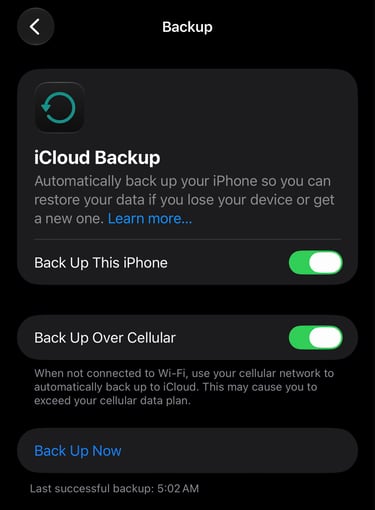
iCloud Backup – The easiest option. Go to Settings → Your Name → iCloud → iCloud Backup, then tap Back Up Now.
Mac or Windows – Connect your iPhone to your computer and create a backup using Finder on a Mac or the Apple Devices app (or iTunes on Windows PCs).
Pro tip: If you're making a backup on a Mac or Windows PC, consider archiving your backup before installing the beta. An archived backup won't be overwritten by future backups, so you can restore your iPhone to that exact stable version later if you decide to leave the beta. If you're creating a backup on a Mac, there's one extra step that's worth doing before installing the beta: archive your backup.
Normally, every time you create a new backup, your previous backup is replaced. That means you could lose the backup you made before installing the beta.
By archiving your backup, you lock it so it can't be overwritten. This gives you a copy of your iPhone exactly as it was before installing the beta. If you decide to leave the beta later, you can restore your iPhone using this archived backup.
Here's how to archive a backup on a Mac:
Connect your iPhone to your Mac.
Open Finder and select your iPhone in the sidebar.
Create a backup if you haven't already.
In the menu bar, click Finder → Settings (or Preferences on older versions of macOS).
Open the Devices tab.
Right-click (or Control-click) your latest iPhone backup.
Select Archive.
You'll see a small lock icon next to the backup, which means it has been archived and won't be overwritten by future backups.
Good to know: This option is only available when you back up your iPhone to a Mac. iCloud backups can't be archived.
Install the iOS Beta
Once you've updated your iPhone, created a backup, and you're ready to go, it's time to install the beta.
Go to:
Settings → General → Software Update → Beta Updates
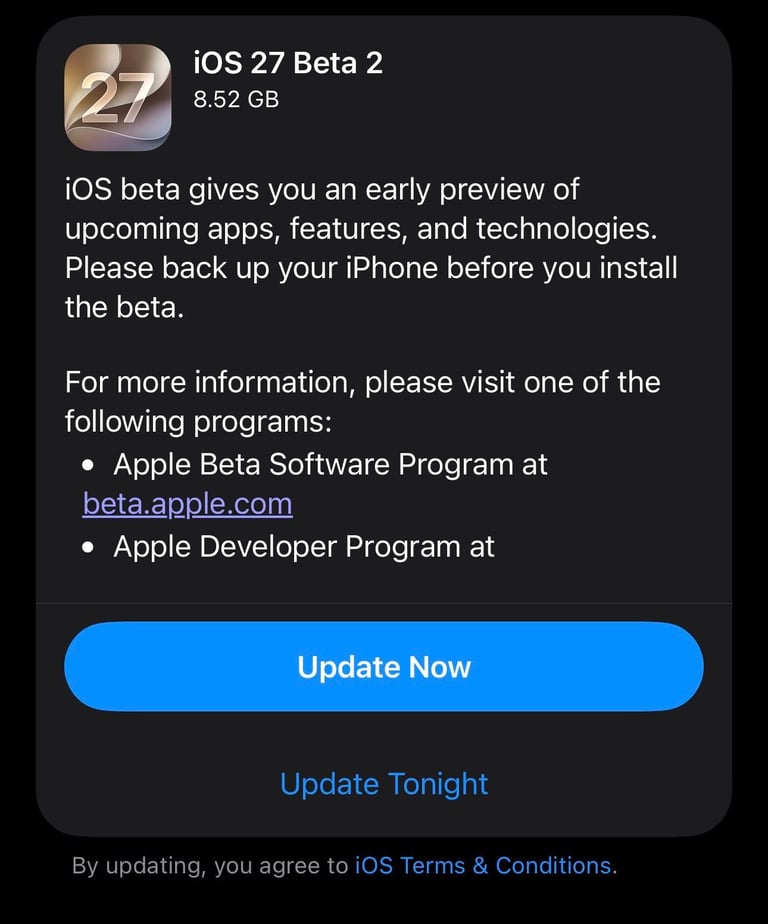
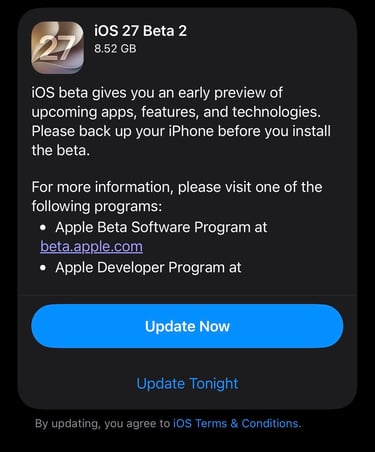
Choose the beta you want to install, then go back to the Software Update screen. Your iPhone will find the beta update. Tap Update Now (or Download and Install) and follow the on-screen instructions.
Make sure your iPhone has enough battery or is connected to a charger, and keep it connected to Wi-Fi while the update downloads.
What to Expect After Installing
Once the installation is complete, your iPhone may take a little longer than usual to start up. That's completely normal. After the update, your iPhone may continue working in the background for a while. It might index your photos, files, and apps, which can temporarily make the device feel slower or cause the battery to drain faster.
Most of the time, this settles down after a day or two.
Keep in mind that beta software is still being tested. You may come across bugs, apps that don't work properly, or features that change in future beta updates.
How to Leave the iOS Beta
If you decide the beta isn't for you, you have two options. The easiest option is to turn off beta updates. Go to:
Settings → General → Software Update → Beta Updates
Select Off. Your iPhone will stop receiving new beta updates. You'll stay on your current beta version until Apple releases the next public version of iOS, then you can update back to the stable release.
If you want to leave the beta immediately, you'll need to erase your iPhone and restore it using the backup you created before installing the beta. That's why making a backup before you start is so important.
If you archived a Finder backup, restoring your iPhone is much easier because you'll be able to return to the exact stable version you were using before installing the beta.
Ready to Try the iOS Beta?
Installing an iOS beta is a great way to try Apple's newest features before they're released to everyone. As long as you take a few minutes to prepare your iPhone first, you'll have a much smoother experience and be ready if anything goes wrong.
I hope this article helped you feel more confident about installing the latest iOS beta.
If you enjoy tips like these, subscribe to my free weekly newsletter. Every week, I share easy-to-follow iOS tips and tricks, hidden iPhone features, the latest beta news, app updates, and everything happening in the Apple world—straight to your inbox.
You can also follow me on Threads, Instagram, Bluesky, and Pinterest, where I share daily Apple news, iOS tips, beta updates, and helpful tricks to get more out of your iPhone.
Thanks for reading, and enjoy exploring the latest iOS beta! 📱💙
My favorite Apple products on Amazon
Want more iPhone tips like this?
I share new iOS guides, hidden features, and practical iPhone tips every week. Subscribe to my FREE newsletter and get them delivered straight to your inbox.
Newsletter
Subscribe now for Apple news and exclusive content.