Your weekly dose of Apple news, iOS guides & more → Subscribe FREE

How to enable full 120Hz scrolling in Safari on iPhone and Mac
2/19/20262 min read
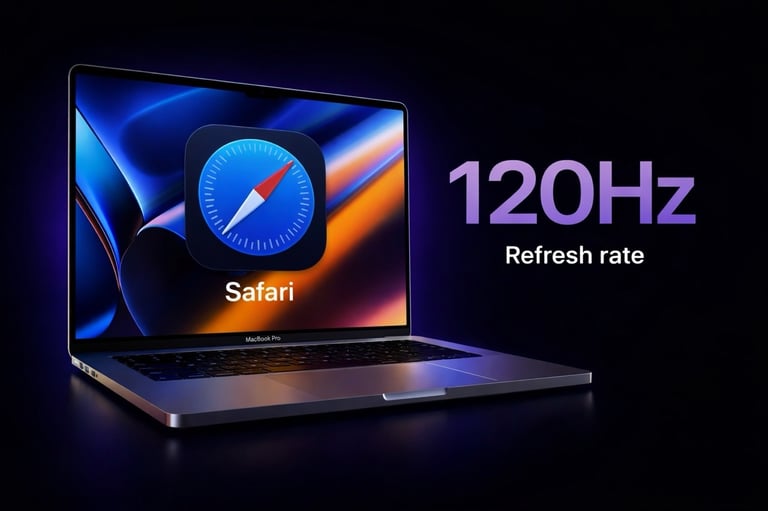

My post on Threads about 120Hz scrolling in Safari unexpectedly went viral, and I received so many great reactions and questions.I'd love to write this article to walk you through the steps, clearly and simply, so you can enable it yourself. This works on both iPhone and MacBook, as long as your device has a ProMotion display that supports a 120Hz refresh rate.
The good news? You can change it in just a few steps.
Please note that if you enable this setting it might affect your daily battery life.
Step-by-step: enable full 120Hz in Safari
Open Settings
Tap Apps
Select Safari
Scroll down and tap Advanced
Open Feature Flags
Toggle off “Prefer Page Rendering Updates near 60fps”
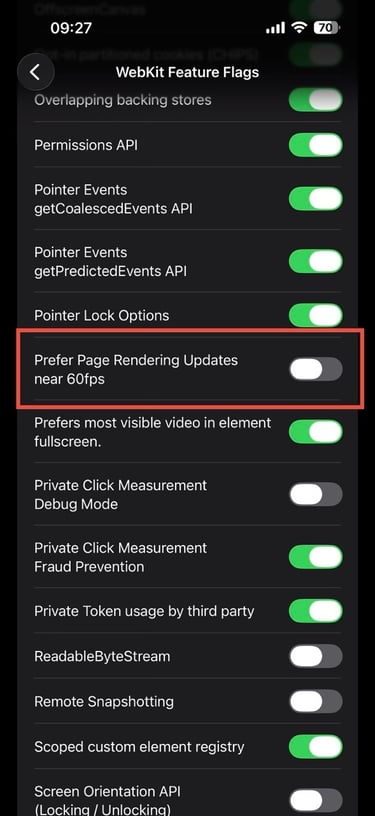
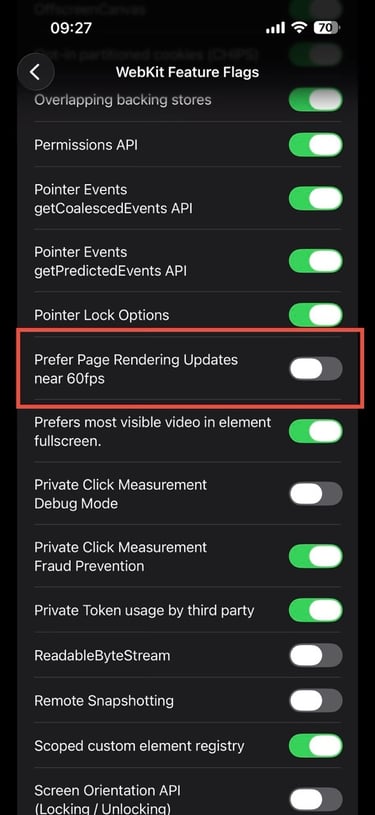
Path:
Settings → Apps → Safari → Advanced → Feature Flags → Toggle OFF Prefer Page Rendering Updates near 60fps
That’s it. Safari should now scroll noticeably smoother. You can test this yourself.Open Safari and go to testufo.com. This website lets you run a quick benchmark to see the refresh rate in action.
*Keep in mind that Safari may already be using 120hz on some websites so it might not be a big difference to everybody.
How to enable this on my MacBook?
If you’re using a MacBook with a ProMotion display (120Hz), Safari can scroll much smoother than you might expect.
There’s just one setting you need to enable first.
Step-by-step: enable full 120Hz in Safari on Mac
Open Safari
Click Safari in the menu bar → Settings
Go to Advanced
Enable “Show features for web developers”
Now open the Develop menu in the menu bar
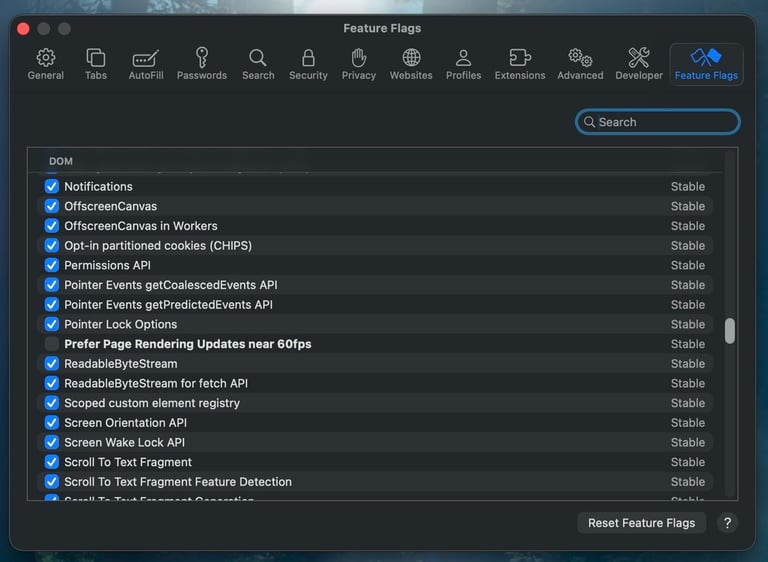
Click Feature Flags
Search for “60 fps”
Turn off
“Prefer Page Rendering Updates near 60 fps”
Important to know
This only works on iPhones with a ProMotion (120Hz) display
After some iOS updates, this setting may turn on again, so it’s worth checking
You don’t need to restart your iPhone. The change applies immediately
That’s it. Safari should now feel noticeably smoother when browsing on your Mac.
Important to know
This only works on MacBooks with a ProMotion (120Hz) display
The change takes effect immediately. No restart needed
After a macOS update, this setting may reset, so it’s worth checking again
Path:
Safari → Settings → Advanced → Enable Show features for web developers → Develop → Feature Flags → Toggle OFF Prefer Page Rendering Updates near 60 fps