Your weekly dose of Apple news, iOS guides & more → Subscribe FREE

Apple adds a new AirDrop feature in iOS 26.2, here’s how it works
Apple improved AirDrop in iOS 26.2 with a new one-time code feature. Learn how it works and how to use it.
2/20/20263 min read
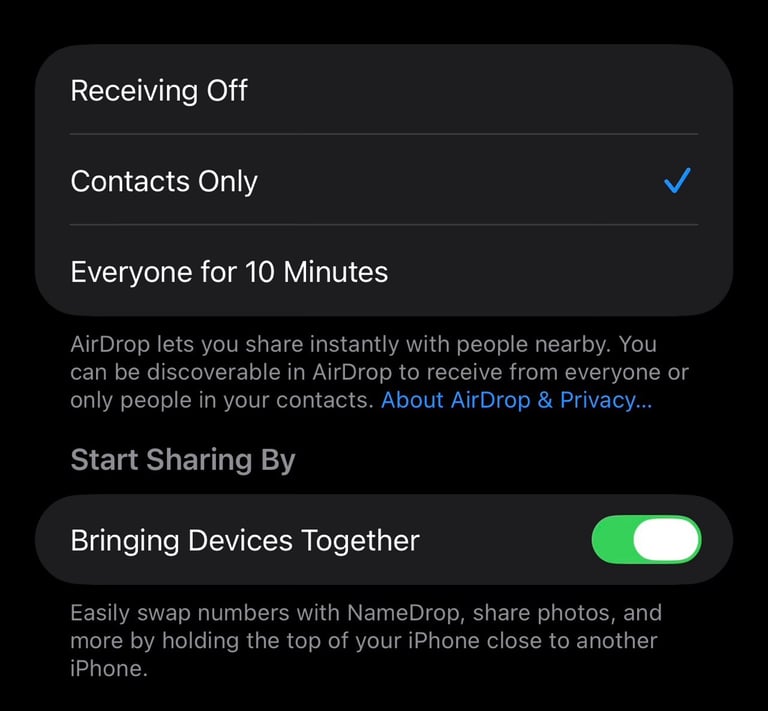
One of my favorite things about the Apple ecosystem is AirDrop. I use it all the time to quickly share content between my Apple devices without thinking twice. And with iOS 26.2 Apple made this more secure by adding some details to it. Here is how it exactly works.
Step 1: Open you AirDrop settings
Open Settings
Tap General
Tap AirDrop
Make sure you have Turn on AirDrop.
Path: Settings → General → AirDrop
How AirDrop works
AirDrop lets you share photos,videos, links, and files between Apple devices without using the internet. Instead of going through Wi-Fi or mobile data, AirDrop creates its own direct connection between devices.
What actually happens:
AirDrop uses Bluetooth to find nearby Apple devices
Once a device is found, it creates a private, temporary Wi-Fi connection
Your file is sent directly from one device to the other without the lose of quality.
Do you need internet for AirDrop?
No. You don’t need Wi-Fi or a mobile connection to be online.
You only need:
Bluetooth turned on
Wi-Fi turned on (even if not connected to a network)
Your devices handle the rest.
Think of AirDrop like this: Your Apple devices briefly create their own secure network, share the file, and then disconnect again.
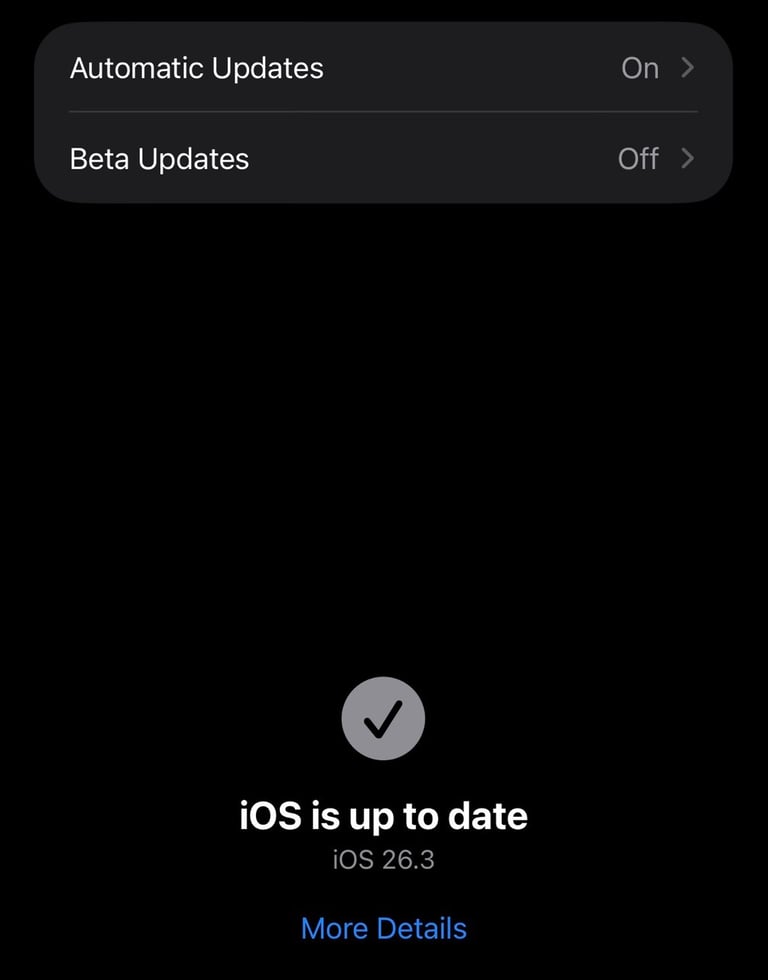
Before you want to use the new AirDrop setting, please make sure you have your iPhone updated to iOS 26.2 or later. You can check for updates by going to:
Settings → General → Software Update
Step 2: AirDrop to an unknown device using an AirDrop code
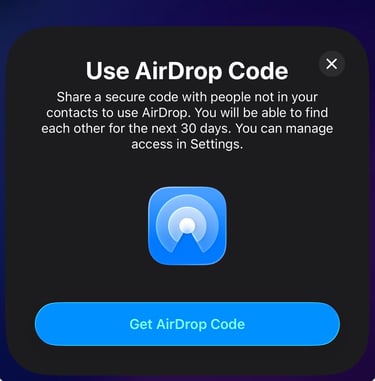
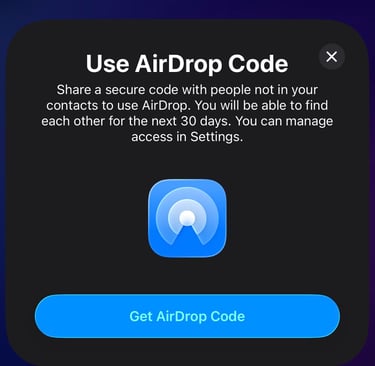
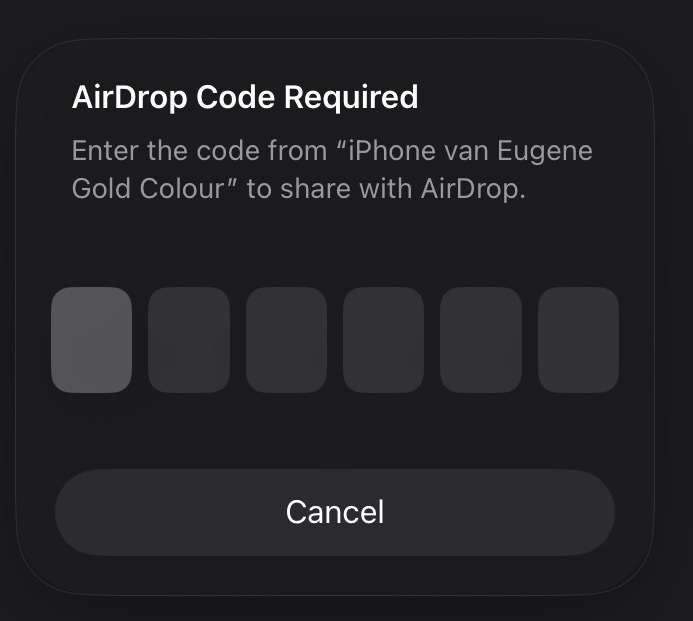
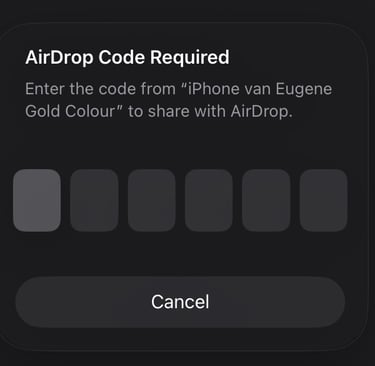
When you try to AirDrop something to a device that isn’t in your contacts, iOS now uses an AirDrop code to complete the transfer.
How it works
Start an AirDrop as you normally would
Select a nearby device that isn’t in your contacts
The receiving device shows a one-time AirDrop code
Enter that code on the sending device to confirm the transfer
Step 3: What happens after using an AirDrop code
Once you’ve completed an AirDrop using a one-time code, iOS remembers the connection.
Here’s what changes:
The other person will appear under Manage Known AirDrop Contacts
You’ll be able to AirDrop to each other for 30 days
There’s no need to add the person to your contacts
You can manage or remove these connections at any time via:
Path: Settings → General → AirDrop → Manage Known AirDrop Contacts
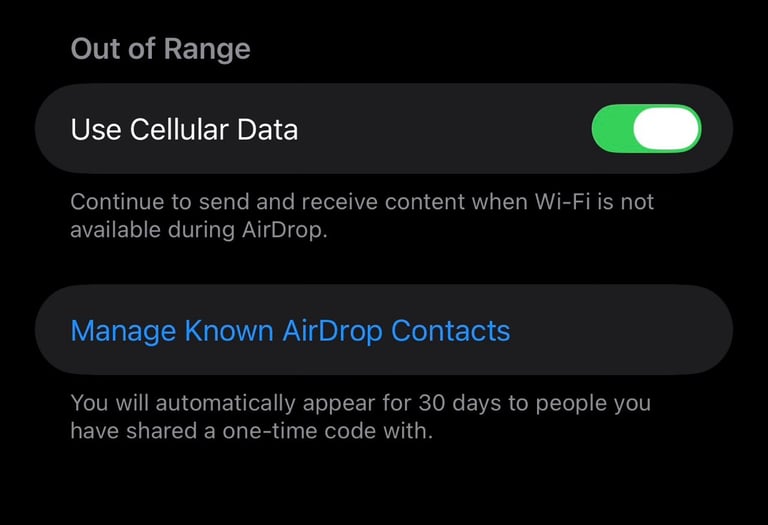
Apple explains it like this:
“You will automatically appear for 30 days to people you have shared a one-time code with.”
Important to know:
You can’t manually create an AirDrop code yet
The code only appears during an AirDrop attempt
In many cases, this replaces the need to use Everyone for 10 Minutes